How to Secure Your Ollama Installation
Run this 30-second audit script to catch the exact misconfiguration that exposed thousands of Ollama instances to the public internet. Copy-paste fixes included.
>This covers the security audit. Ship Local AI with Ollama goes deeper on HIPAA-adjacent compliance, authenticated reverse proxies, Docker-specific exposure, and the full threat model for running AI with sensitive client data.
Ship Local AI with Ollama
Build 5 Real Projects on Your Own Hardware in 30 Days
Summary:
- A copy-paste bash audit script that checks your Ollama installation for the 7 most common security issues.
- The one environment variable that exposed 7,500 Ollama instances to the open internet.
- Specific fixes for each finding: bind address, firewall rules, disk encryption, ChromaDB permissions.
- Authentication options when you need network access (Caddy reverse proxy, Python middleware).
An earlier Shodan scan found roughly 7,500 Ollama instances exposed to the open internet. No authentication. No encryption. Anyone with a browser could send prompts, download models, and access the host machine. Every single one was caused by the same configuration change: setting OLLAMA_HOST=0.0.0.0.
The problem got worse. A January 2026 joint investigation by SentinelOne Labs and Censys found 175,000 exposed Ollama hosts across 130 countries, with 91,403 documented attack sessions between October 2025 and January 2026. China accounted for 30%+ of exposures. Attackers built the first documented LLMjacking marketplace: scanning for open instances, validating them, and reselling access through a unified API gateway.
The exposed hosts aren’t just leaking prompts. Nearly half had tool-calling enabled, meaning remote code execution, API access, and interaction with external systems. No auth, no monitoring, no billing. The Hacker News
That’s the exact setting you need for legitimate network access. Here’s how to use it without becoming number 7,543.
What does the Ollama security audit check?
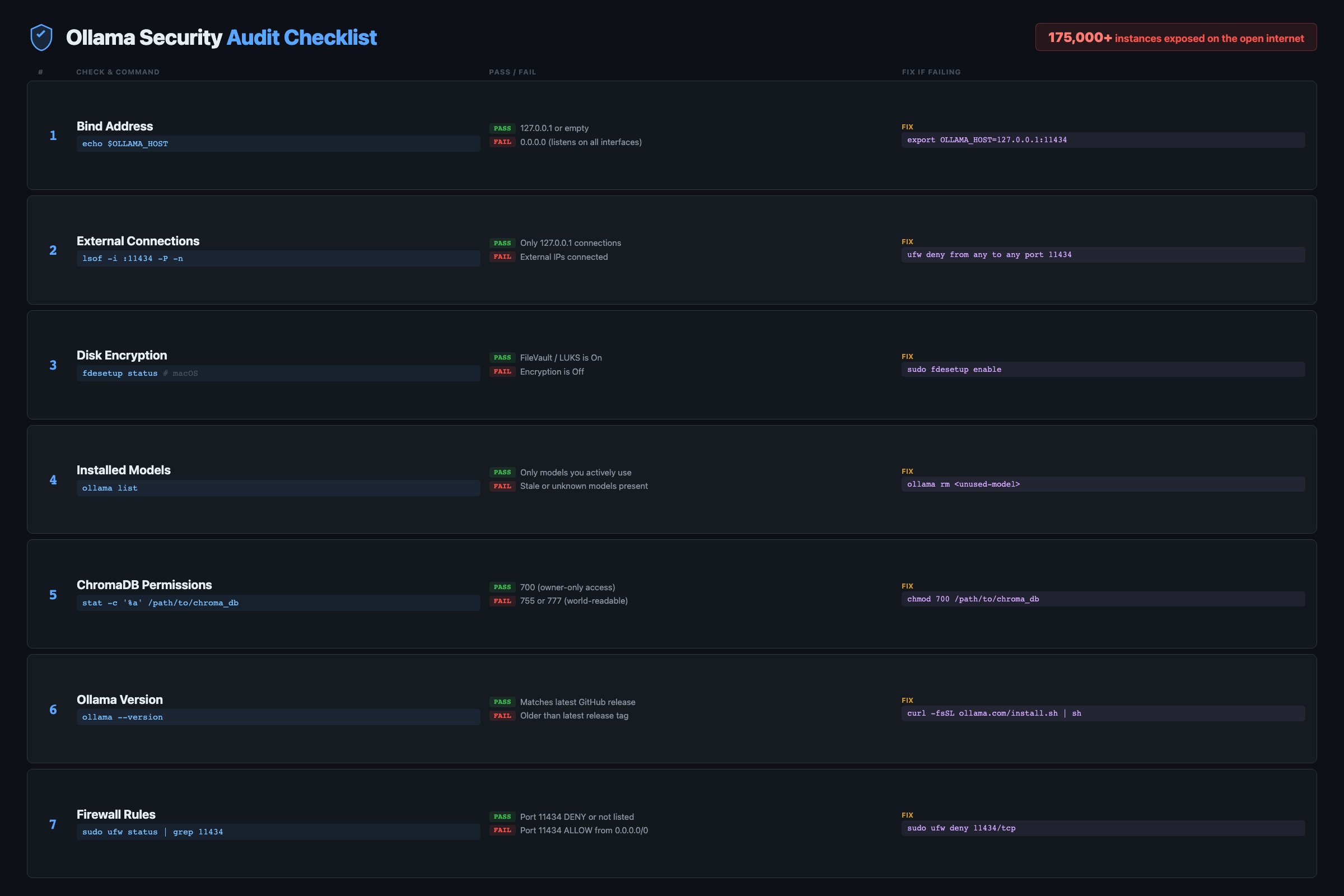
The audit covers 7 checks that catch the most common misconfigurations. Copy this script, run it, and fix any warnings before handling sensitive data.
#!/bin/bash
# ollama-audit.sh - Security audit for Ollama installations
echo "=== Ollama Security Audit ==="
echo "Date: $(date)"
echo ""

# Check 1: Bind address
echo "--- Bind Address ---"
BIND=$(lsof -i :11434 2>/dev/null | grep LISTEN | awk '{print $9}')
if echo "$BIND" | grep -q "0.0.0.0\|\*"; then
    echo "WARNING: Ollama listening on ALL interfaces (0.0.0.0)"
    echo "  Fix: Set OLLAMA_HOST=127.0.0.1:11434"
else
    echo "OK: Listening on localhost only"
fi
echo ""

# Check 2: External connections
echo "--- External Connections ---"
EXTERNAL=$(lsof -i -P 2>/dev/null | grep ollama | grep -v "127.0.0.1\|localhost\|LISTEN")
if [ -n "$EXTERNAL" ]; then
    echo "WARNING: External connections detected:"
    echo "$EXTERNAL"
else
    echo "OK: No external connections"
fi
echo ""

# Check 3: Disk encryption
echo "--- Disk Encryption ---"
if command -v fdesetup &>/dev/null; then
    if fdesetup status 2>/dev/null | grep -q "On"; then
        echo "OK: FileVault enabled"
    else
        echo "WARNING: FileVault OFF. Disk data is unencrypted."
    fi
elif command -v lsblk &>/dev/null; then
    if lsblk -f 2>/dev/null | grep -q "crypto_LUKS"; then
        echo "OK: LUKS encryption detected"
    else
        echo "WARNING: No disk encryption detected"
    fi
fi
echo ""

# Check 4: Installed models
echo "--- Installed Models ---"
ollama list 2>/dev/null
echo "(Review for unexpected models)"
echo ""

# Check 5: ChromaDB permissions
echo "--- ChromaDB Storage ---"
if [ -d "./chroma_db" ]; then
    PERMS=$(stat -f "%Sp" ./chroma_db 2>/dev/null || stat -c "%a" ./chroma_db 2>/dev/null)
    echo "ChromaDB found. Permissions: $PERMS"
    if [ "$PERMS" = "drwx------" ] || [ "$PERMS" = "700" ]; then
        echo "OK: Restricted to owner"
    else
        echo "WARNING: May be readable by other users. Fix: chmod 700 ./chroma_db"
    fi
else
    echo "No ChromaDB directory (skip if not using RAG)"
fi
echo ""

# Check 6: Ollama version
echo "--- Ollama Version ---"
ollama --version 2>/dev/null
echo "(Check ollama.com for latest)"
echo ""
echo "=== Audit Complete ==="
Save it, make it executable, run it:
chmod +x ollama-audit.sh
./ollama-audit.sh
The whole thing takes about 5 seconds. Run it before handling sensitive data, after changing any Ollama config, and once a month as routine maintenance.
What does OLLAMA_HOST=0.0.0.0 actually do?
By default, Ollama listens on 127.0.0.1:11434 (localhost only). Your machine can reach it. Nothing else can. That’s safe.
Setting OLLAMA_HOST=0.0.0.0:11434 tells Ollama to accept connections from any IP address. On a home network, that means your phone, tablet, and every other device on your WiFi can talk to your AI server. On a cloud VPS with a public IP, that means the entire internet can access it.
Those ~7,500 exposed instances were on cloud servers. Home users behind a router’s NAT are safer because external traffic can’t reach internal IPs. But “safer” isn’t “safe.” Check your bind address:
lsof -i :11434
# Safe:  127.0.0.1:11434  (localhost only)
# Risk:  *:11434           (all interfaces - exposed)
# Risk:  0.0.0.0:11434     (all interfaces - exposed)
Read this carefully:
*:11434means Ollama is listening on ALL network interfaces. That is NOT safe on any network with other devices or public access. Only127.0.0.1:11434means localhost-only.
If you see * or 0.0.0.0 and you don’t need network access from other devices, revert to localhost. On Linux:
sudo systemctl edit ollama
# Remove: Environment="OLLAMA_HOST=0.0.0.0:11434"
sudo systemctl daemon-reload && sudo systemctl restart ollama
How do real Ollama deployments get burned?
The freelancer on client WiFi. You bring your laptop to a demo. Your Ollama is set to 0.0.0.0 from your home server setup. You connect to the client’s WiFi. Now every device on their network can hit your AI server. Their IT department flags an unknown service on port 11434. Not a great first impression.
Fix: check your bind address before connecting to any network that isn’t yours.
The Docker port mapping mistake. You run Ollama in Docker with -p 11434:11434. Docker maps the port to all interfaces by default, overriding your host-level localhost restriction. Your containerized Ollama is now network-accessible even though the host Ollama isn’t.
# Dangerous: exposes to all interfaces
docker run -p 11434:11434 ollama/ollama

# Safe: localhost only
docker run -p 127.0.0.1:11434:11434 ollama/ollama
Why Docker is different: Docker’s
-pflag maps container ports to the host.-p 11434:11434binds to0.0.0.0by default, overriding any localhost restriction inside the container. Always specify the bind address:-p 127.0.0.1:11434:11434. This is the single most common Docker-specific Ollama exposure.
The credential leak. Your custom Modelfile includes a system prompt like: “You have access to postgres://admin:password123@server:5432/prod.” You commit the Modelfile to a public GitHub repo. Fix: never put credentials in Modelfiles. Use environment variables injected at runtime.
How do you add authentication when you need network access?
Ollama has no built-in auth. If you need network access (home server, team setup), put a reverse proxy in front.
Caddy (simplest option):
brew install caddy  # Mac
# or: sudo apt install caddy  # Linux
Create a Caddyfile:
:8443 {
    basicauth {
        admin $2a$14$YOUR_HASHED_PASSWORD_HERE
    }
    reverse_proxy localhost:11434
}
Generate the password hash with caddy hash-password, paste it into the Caddyfile, and run caddy run. Clients connect to port 8443 with basic auth. Ollama stays on localhost.
# Without auth: rejected
curl http://localhost:8443/api/tags
# 401 Unauthorized

# With auth: works
curl -u admin:yourpassword http://localhost:8443/api/tags
Python middleware (zero extra software):
from flask import Flask, request, Response
import requests

app = Flask(__name__)
API_KEY = "your-secret-key-here"

@app.before_request
def check_auth():
    key = request.headers.get("Authorization", "").replace("Bearer ", "")
    if key != API_KEY:
        return {"error": "unauthorized"}, 401

@app.route("/<path:path>", methods=["GET", "POST", "DELETE"])
def proxy(path):
    resp = requests.request(
        method=request.method,
        url=f"http://localhost:11434/{path}",
        json=request.get_json(silent=True),
        stream=True
    )
    return Response(resp.iter_content(), status=resp.status_code,
                    content_type=resp.headers.get("Content-Type"))

if __name__ == "__main__":
    app.run(host="0.0.0.0", port=8443)
Ollama stays on 127.0.0.1:11434. The proxy runs on 0.0.0.0:8443 with API key checking. Anyone probing port 11434 from the network gets nothing. Anyone probing 8443 without the key gets a 401.
How do you verify Ollama doesn’t phone home?
Don’t trust anyone’s claim. Verify it yourself:
# While using Ollama, check all its network connections:
lsof -i -P | grep ollama

# You should see ONLY localhost connections on port 11434
# No outbound connections to external IPs

# The ultimate test: disconnect from the internet and run a query
ollama run llama3.1:8b "What is the speed of light?"
# If it responds, Ollama truly doesn't need network access
Ollama is open source. The codebase is on GitHub. Security researchers have audited it: zero telemetry, zero outbound connections after model download. But “trust but verify” is the right instinct.
What should you actually do?
- If you only use Ollama on one machine: leave
OLLAMA_HOSTat the default (localhost). You’re already safe. Run the audit script monthly. - If you need network access for a home server: set
0.0.0.0but verify your router isn’t port-forwarding 11434. Add the Caddy or Python auth proxy. - If you handle sensitive data (client files, medical, legal): enable full-disk encryption (FileVault/BitLocker/LUKS), restrict ChromaDB directory to owner (
chmod 700), and add application-level query logging for compliance. - If you run Ollama in Docker: always bind explicitly to
127.0.0.1in the port mapping. Never use bare-p 11434:11434.
Official guidance: Ollama’s FAQ confirms: no telemetry, no outbound connections after model download, localhost binding by default. The security risk is entirely in how you configure network access.
What does the full system look like?
This article covers the security audit. Ship Local AI with Ollama includes the full hardening playbook: 15-point checklist, Caddy reverse proxy configs, Docker Compose templates, and systemd unit files.
Here’s 5 of the 15 checklist items:
## Production Hardening Checklist
- [ ] OLLAMA_HOST bound to 127.0.0.1 (verified with lsof)
- [ ] Docker ports mapped to 127.0.0.1 explicitly
- [ ] Reverse proxy with auth in front of any network exposure
- [ ] Full-disk encryption enabled (FileVault/LUKS/BitLocker)
- [ ] Model files stored on encrypted volume only
  ... + 10 more items covering log rotation, update policy,
      network segmentation, ChromaDB permissions, and backup encryption
That’s the first third. The full checklist covers everything needed for HIPAA-adjacent deployments.
bottom_line
- The audit script catches the mistake that got 7,500 users exposed. Run it in 5 seconds, fix any warnings, move on.
- Ollama itself is secure by default. The risk comes from changing one setting (
OLLAMA_HOST=0.0.0.0) without understanding the consequences, or from Docker’s default port mapping behavior. - For regulated industries, local AI solves the biggest compliance headache: data never leaves the building. The remaining 20% is access controls, encryption, and logging. The audit script covers the first two. Application-level logging covers the third.
Frequently Asked Questions
Does Ollama send my data to any external server?+
No. Ollama has zero telemetry. After the initial model download, it requires no internet. Verify this yourself: run `lsof -i -P | grep ollama` while using it. You'll see only localhost connections.
Is OLLAMA_HOST=0.0.0.0 dangerous?+
On a home network behind a router, it exposes your AI to every device on your WiFi but not the internet. On a cloud server with a public IP, it exposes your instance to the entire internet. 7,500 users learned this the hard way.
How do I add authentication to Ollama?+
Ollama has no built-in auth. Put Caddy or nginx in front of it as a reverse proxy with basic auth or API key checking. Keep Ollama bound to localhost and expose only the proxy on the network.