Set Up Claude for Small Business in 30 Minutes
How to set up Claude for Small Business in 30 minutes: install Cowork (not the browser), connect one tool, and run a safe read-only first workflow today.
>This gets you to one safe, read-only workflow in 30 minutes. Claude for Small Business: The Business That Runs Itself goes deeper on wiring in QuickBooks and your CRM, the approval-gated back office, and the exact 30-day order to roll it all out.
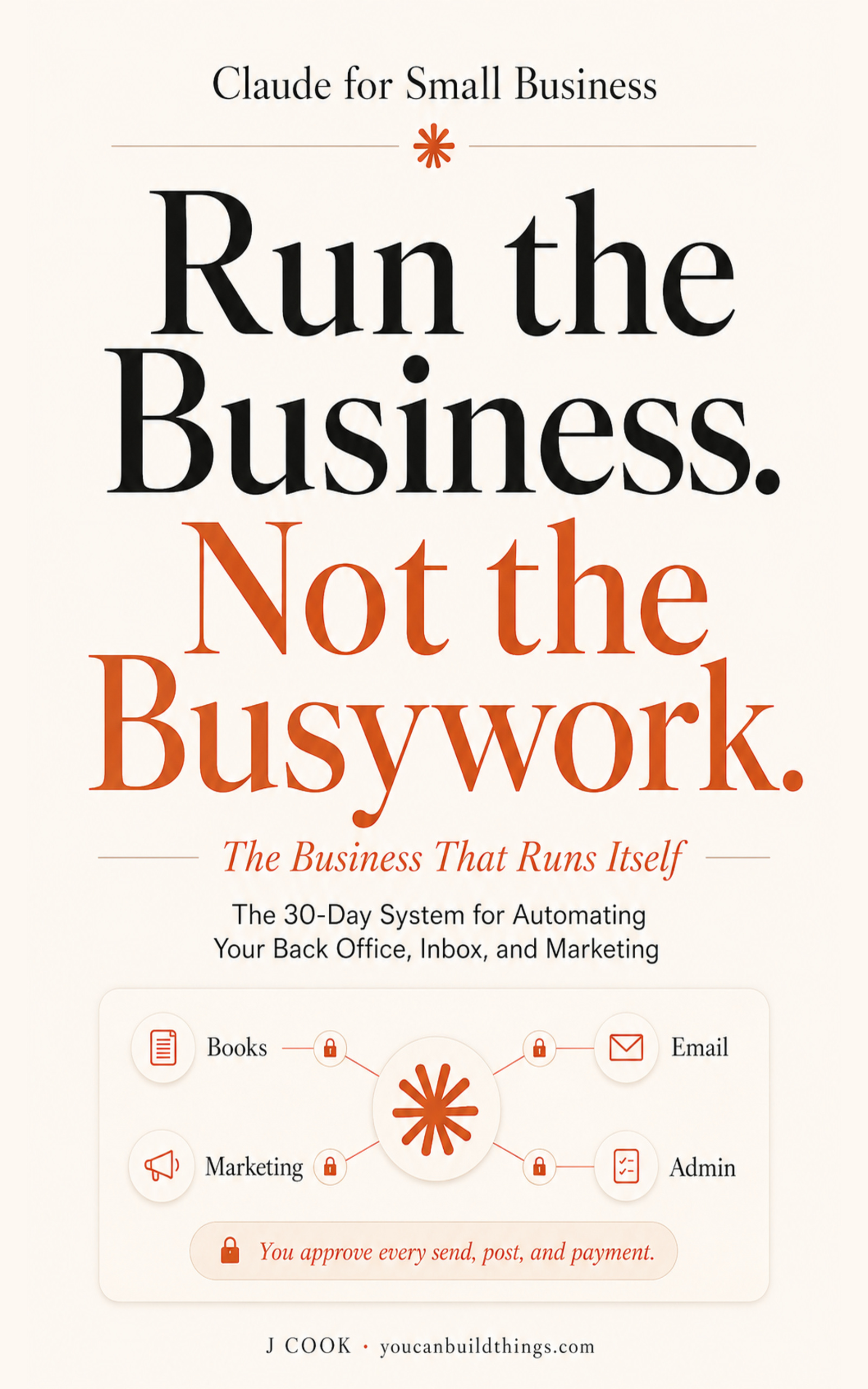
Claude for Small Business: The Business That Runs Itself
The 30-Day System for Automating Your Back Office, Inbox, and Marketing
Summary:
- Where to run the plugin (Cowork desktop, never the browser) and the $20 plan that covers it.
- The three-step install, with the exact commands, in about ten minutes.
- The one safe first workflow to run so your first try cannot break anything.
- The four setup snags people hit, and the fix for each.
Here is how to set up Claude for Small Business without burning a Saturday: thirty minutes, three steps, and a first workflow that physically cannot touch your money. Most owners install it, see a menu of fifteen workflows with no instructions, and freeze. You are going to do the opposite. Open the right app, connect one tool, run a read-only brief, and finish holding real output you could actually use. Set a timer for thirty minutes. Go.
Where do you actually run Claude for Small Business?
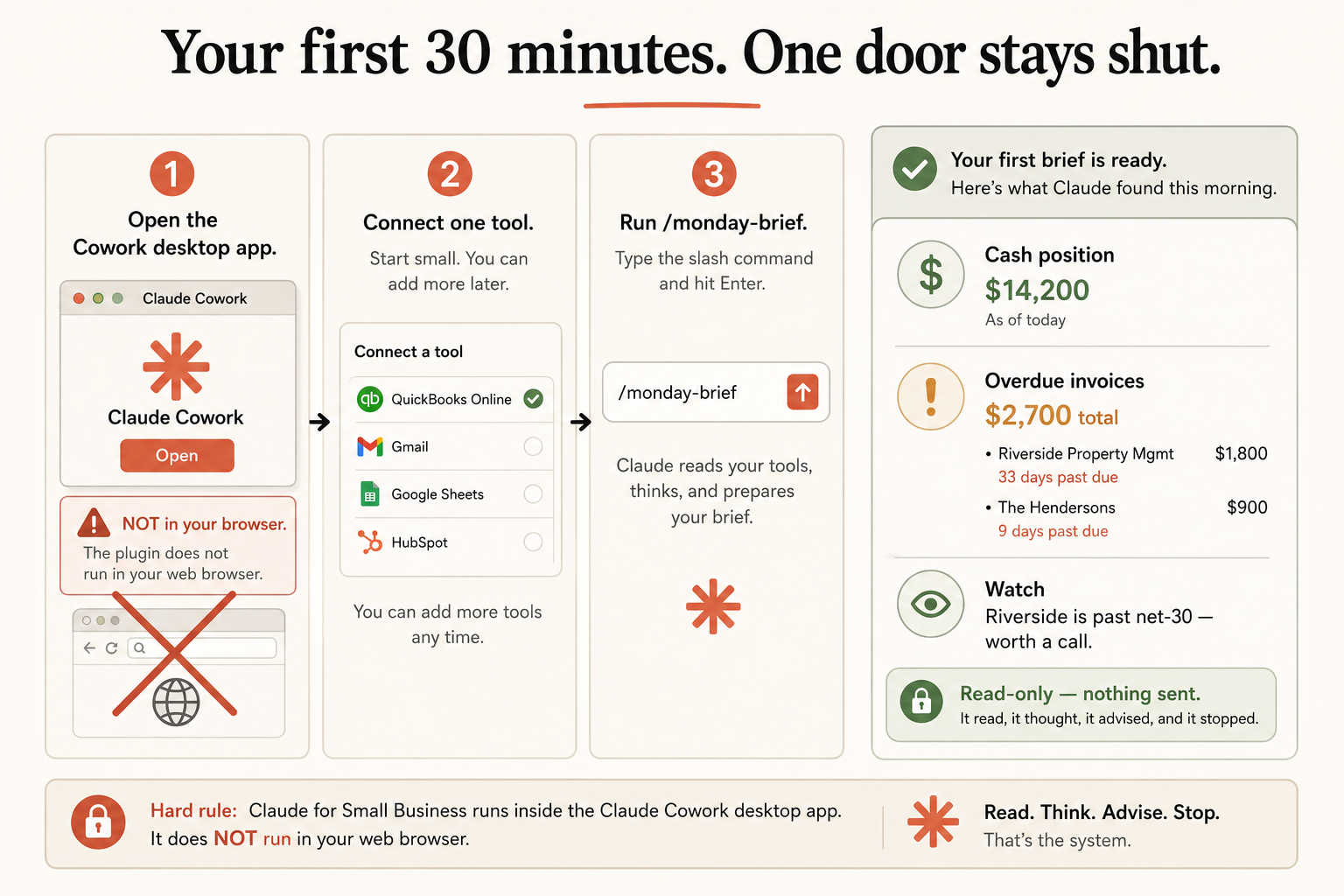
You run it in the Claude Cowork desktop app, not the web browser. This is the single biggest time-waster, so read it twice: the small-business plugin does not run at the Claude website. If you log into your browser and hunt the chat screen for a “small business” button, you will not find one, and you will conclude the product is broken. It is not. You are in the wrong room.
There are three doors. The web app cannot run the plugin. Claude Code (the terminal) can, but if “runs in a terminal” makes you tense, skip it. Cowork is a program you download and install on your Mac or Windows machine, and it is the right answer for about 95% of owners. Cowork is desktop only: you can message it from your phone to hand off a task, but the work happens on the computer where you actually work.
What plan? Claude Pro at $20 a month covers everything here. Cowork runs on every paid plan but not the free one. Ignore the write-ups claiming this is “Team and Enterprise only.” That is wrong, and it confuses the price of access with a separate note about data handling.
One more thing, so you can correct the videos: you will see claims of “31 skills” or even “33.” The real number, straight from the plugin’s own files, is 15 ready-to-run workflows, 15 skills under the hood, and 1 router that takes plain English. Count every folder and you get 31 (15 + 15 + 1), which is where the headlines come from. The number you operate is fifteen.
How do you install it in about ten minutes?
Three steps. The hard part is not hard.
Step one: install the Cowork desktop app on your work computer. Download it, open it, sign in with your paid Claude account. Same as installing any other program. Not the browser.
Step two: add the Small Business plugin. In Cowork, you add it from the plugin page at claude.com/plugins: find Small Business, click install, done. No commands, no terminal. It is the same “find it, click install” move as adding an app to your phone.
If you chose the terminal (Claude Code), here are the exact two commands, verified against the official repo. Do not add flags; there are none you need.
# From github.com/anthropics/knowledge-work-plugins (small-business/README.md)
claude plugin marketplace add anthropics/knowledge-work-plugins
claude plugin install small-business@knowledge-work-plugins
Step three: say “set me up.” Type or say it, and the onboarding runs. It interviews you about your business, helps you connect your first tool, and shows you a quick demo. When it offers to connect a tool, start with the one that holds your money, usually QuickBooks.
You: set me up
Claude: asks a few questions about your business, then offers to connect a tool
Connect a tool > QuickBooks Online    (or Gmail, Google Sheets, HubSpot)
You log into QuickBooks the normal way in the window that pops up, click allow, and you are back. That is the same “sign in with” flow you have done connecting any two apps. You are not configuring software. You are clicking yes.
What should your first workflow be?
Start read-only. There is a category of workflow that only ever looks: it reads your data, thinks, and hands you a summary. It cannot send an email, move a dollar, or change a record. It is impossible to break anything with it, which makes it the perfect first run. The best one is the Monday brief. Type /monday-brief, or just ask “what should I focus on this week?”
Give it a minute. It reaches into what you connected and hands back something like this, for a three-truck pool-service company:
Your Week at a Glance
Cash position: $14,200 in the account.
Overdue invoices: $2,700 total.
  - Riverside Property Mgmt, 33 days (past net-30, your biggest account)
  - The Hendersons, 9 days
Watch: Riverside is past terms. Worth a call, not just a reminder.
Read-only: nothing sent. It read, it thought, it advised, and it stopped.
Look at what happened. One short request pulled your real cash number, found the actual overdue invoices, and noticed the overdue one is your biggest account, so it flagged a phone call instead of an automated nudge. That last part is your business context doing its job. And notice what it did NOT do: it did not call Riverside, fire a reminder, or touch a dollar. Read. Think. Advise. Stop. That is the whole system, and it is why this was safe to run first.
What broke in the first 30 minutes?
I will not pretend every install is smooth. This is a research-preview product, and owners have hit real snags. Here are the four people actually hit, and the fix for each.
“I cannot find the small-business anything.” You are in the browser. This is the number-one issue. Close the tab, open the Cowork desktop app, and look there. If you are sure you are in the desktop app and still see nothing, you have not added the plugin yet, so install it from claude.com/plugins.
“The connection will not finish, or it logged me out.” Connector sign-ins occasionally stall or expire, especially in a preview. The fix is almost always to run the connection again: start the sign-in a second time, approve it, and it usually takes. A tool that worked yesterday asking you to log in again today is the same rough edge, not a broken setup.
“The brief came back empty or generic.” Either nothing is connected yet, so the tool has nothing to read, or your business context did not make it in, so it does not know your prices and customers. An empty brief is the tool being starved, never the tool being dumb. Feed it and it works.
“I am on Claude Code and the install threw an error.” The usual culprit is a version mismatch in the underlying tooling. The honest fastest fix for a non-developer is to stop fighting the terminal and switch to Cowork, which sidesteps all of it and is the surface I recommend anyway.
None of the four takes more than a couple of minutes once you know the cause. The owners who “spent a whole night” did so because they did not know which one they were hitting. Now you do.
What should you actually do?
- If you are a typical owner → install Cowork, not Claude Code, and run
/monday-briefas your first workflow. Done in thirty minutes. - If you only have a free account → upgrade to Pro ($20/mo) first; Cowork will not run otherwise.
- If you tried it in the browser and gave up → you were in the wrong room. Open the desktop app and add the plugin. Five minutes.
- If your first brief looked off → it is almost always a stale connection or thin business context, both quick fixes, not tool failures.
Before you call setup done, run this checklist. Every line should be true:
[ ] Cowork desktop app opens on your work computer (not the browser, not your phone)
[ ] The Small Business plugin is installed
[ ] "set me up" ran start to finish
[ ] Your business context got pasted in
[ ] One real tool (probably QuickBooks) is connected
[ ] /monday-brief returned real output, not an empty or generic page
[ ] You checked one number or name in the brief against the real source
The bottom line
- The whole game on day one is the room and the order: Cowork desktop, not the browser, and a read-only workflow first so your first try cannot hurt you.
- Twenty dollars a month covers all of it. Anyone telling you this needs an enterprise plan did not read the docs.
- Run the Monday brief every morning for a week before you connect anything that sends or pays. A week at read-only is the fastest path to a system you actually trust.
Frequently Asked Questions
Where do I run Claude for Small Business?+
In the Claude Cowork desktop app on Mac or Windows, not the web browser and not your phone. If you are hunting for a 'small business' button in the browser, you are in the wrong room; the plugin only runs in Cowork.
What plan do I need to set up Claude for Small Business?+
Claude Pro at $20 a month is enough. Cowork runs on every paid plan (Pro, Max, Team, Enterprise) but not the free one. You do not need an expensive enterprise contract to run everything in this guide.
How many skills does Claude for Small Business actually have?+
Fifteen workflows, fifteen skills, and one router. Folder counts of 31, or guesses of 33, come from adding all of them together (15 + 15 + 1). The real working number you operate is fifteen workflows.