Keep Claude From Running Wild in Your Business
Set Claude for Small Business guardrails that hold: the three approval tiers (green, amber, red), the brake you must not disable, and a policy you fill in.
>This covers the three-tier approval model and the red lines. Claude for Small Business: The Business That Runs Itself goes deeper on the workflows each tier governs and the 30-day order to turn them on without ever losing the brake.
Claude for Small Business: The Business That Runs Itself
The 30-Day System for Automating Your Back Office, Inbox, and Marketing
Summary:
- Why the tool is safer than the scary stories, and the one setting that keeps it that way.
- The three approval tiers, with exactly what goes in each.
- A guardrails policy you fill in and keep next to your business files.
- What to do the day something slips through anyway.
Setting up Claude for Small Business guardrails is how you turn the fear into a system instead of a feeling. There is a joke that pulled 203 upvotes when this launched: ”:: installs HR plugin :: :: gets fired ::” People laughed because they were nervous, and the nervousness is legitimate. A tool that can draft your invoices can draft a wrong one. A tool that can email customers can email the wrong thing. None of that is a reason not to use it. All of it is a reason to put the power on a leash you hold. Here is how to draw that leash, on paper, in twenty minutes.
Is Claude for Small Business actually safe?
Yes, and the reason is not my opinion, it is the product’s documented behavior: the brake is on by default. Nothing that touches money or a customer happens without your explicit yes. From the plugin’s own README, verbatim:
Every workflow pauses before taking action, so nothing happens without your say-so.
That one line changes the whole risk picture. The scary version of an AI assistant is one that runs off and does things. This one is built, by default, to stop and ask before any action that matters. It drafts the invoice and waits. It writes the customer reply and waits. The pause is not a feature you have to find and turn on. It is the factory setting.
So the foundation of all your safety is one rule: do not disable the pause. Every horror story in this category traces back to someone who turned off the approval step because clicking yes got tedious, then an unattended workflow did something they would never have approved. The tool hands you a brake that is on by default. Your whole job, safety-wise, is to keep your foot near it. And here is the part worth saying out loud: if you are nervous about letting an AI run parts of your business, you are the person who will do this correctly. The cautious owners do not get burned. The ones who flip every switch to automatic on day one do.
How do you set guardrails? Draw three red lines
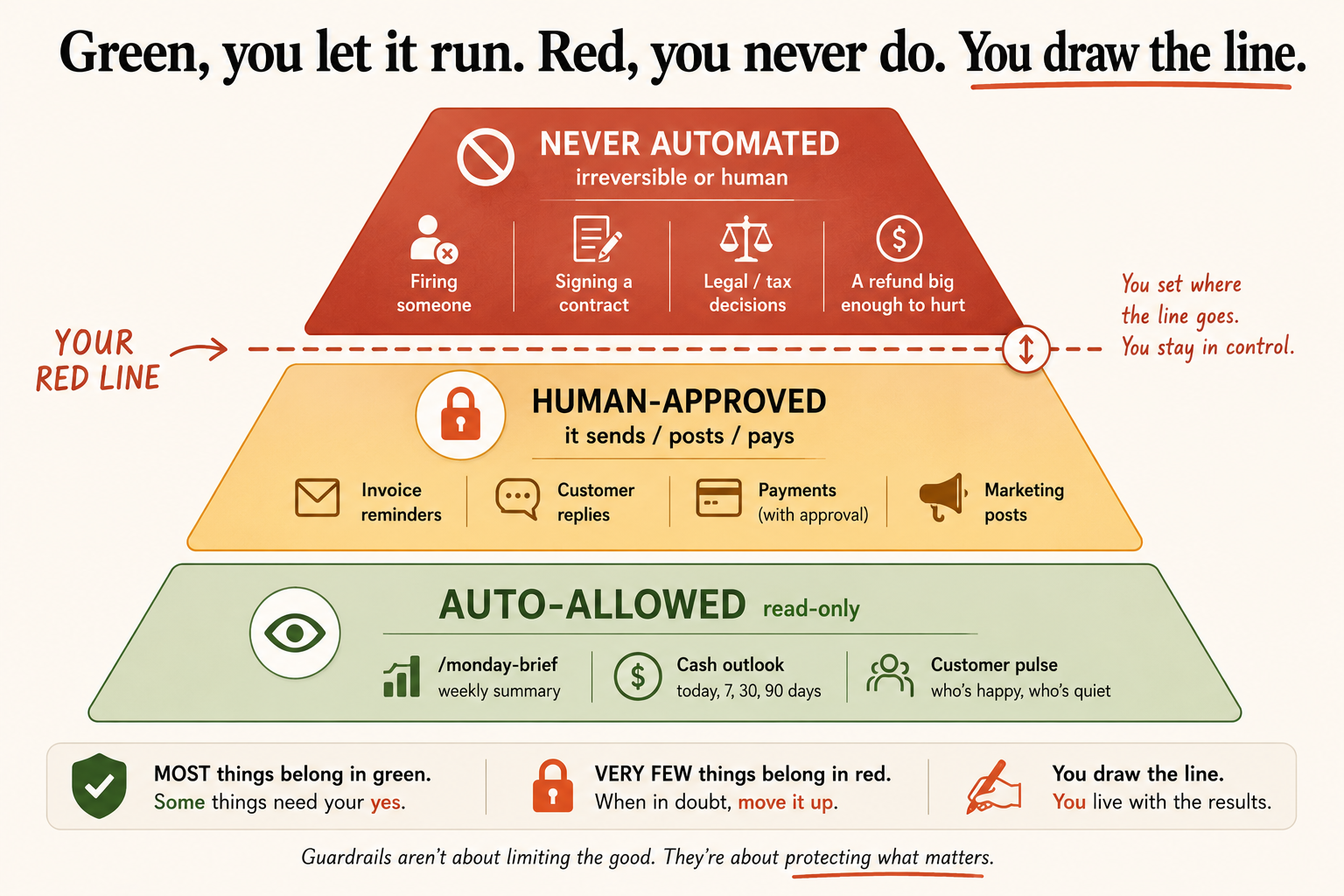
You sort every workflow into one of three tiers. That is the whole method. Walk your workflows through these three buckets in order:
- Green: auto-allowed, because it only looks. Read-only workflows cannot hurt you, so they need no gate. The Monday brief, the cash outlook, the customer-pulse report. Worst case, a read-only workflow gives you a slightly stale number, which your gut catches. Let these run freely.
- Amber: human-approved, because it acts. Anything that sends, posts, or pays lives here, and the approval gate stays on, always. Invoice reminders. Customer replies. Payments and refunds. Marketing posts going live. The tool drafts every one and waits for your yes.
- Red: never automated, because it is irreversible or it is human. Firing someone. Signing a contract. A legal or tax decision. A refund big enough to hurt. The tool can help you think these through and draft them, but the decision and the action stay fully, permanently yours.
Most of your workflows belong in green. Very few belong in red. The exercise is deciding exactly where your line sits between amber and red, because it is your call. The danger is not where you put the line. The danger is not having drawn one at all.
Write it down, because a rule in your head is a rule you break when you are busy. Here is the policy filled in for a pool company; copy the shape and swap in your numbers and your biggest account:
GUARDRAILS POLICY: [my business]

Green (auto-allowed, read-only, run freely):
- /monday-brief, cash outlook, customer pulse
- Rule: these only summarize, so they run without approval.

Amber (human-approved, anything that sends, posts, or pays):
- Invoice reminders: I approve every message before it sends.
- Customer replies: I approve every outbound reply.
- Payments and refunds under $[your number].
- Marketing posts: I approve before anything publishes.

Red (never automated, the irreversible and the human):
- Refunds over $[your number].
- Any message to [my biggest account] without my review.
- Any legal, tax, HR, or contract decision.
- Firing, disciplining, or hiring anyone.

Review rhythm:
- Re-check monthly. Any workflow that errs moves back to stricter approval.
Store this file right next to your business context, because it is part of the same set of facts that make the tool yours.
What does a guardrail look like when it works?
It looks like a two-second catch. Here is the gate doing its job:
You: "chase my overdue invoices."
Claude drafts five reminders and stops, showing the list before anything sends.
You spot your biggest account, a property manager, about to get a stiff
"your account is past due" email. Except they are on net-30 by agreement,
and only on day twelve. You uncheck that one, approve the other four.
No awkward email to your most important relationship. No apology call.
That is the entire safety model in one moment. The tool did the work you hate, drafting five reminders in seconds. The gate gave you the two seconds to apply the one thing the tool did not have: your relationship knowledge. Neither of you did the other’s job. Every owner who runs this for a year builds a small stack of these saves. Keep the gate on, and they stay funny stories instead of bad reviews.
What if something slips through anyway?
Plan for it, because you run a business. Say a reminder reached a client who had already paid, or a draft you approved too quickly had a wrong number. It is rare if your gates are on, but the recovery is the same instinct you use when a human employee makes a mistake:
If something wrong went out anyway:
1. Fix the real-world thing fast and human. Send a quick honest correction
   yourself: "Ignore that last reminder, my system glitched, you're all paid up."
2. Find why it slipped: almost always stale context, a stale connection, or a
   rushed approval. Fix the upstream cause so it cannot recur.
3. Tighten the gate that let it through. Move that category back to full approval.
The goal is not a system that never errs; no system clears that bar, human or AI. The goal is a system where errors are small, caught fast, and fixable, because the gates keep the big irreversible ones from ever firing. A wrong reminder you correct in five minutes is a non-event. The guardrails exist precisely so the mistakes that do slip through are the survivable kind. And once a month, spend five minutes keeping the policy alive:
Once a month, five minutes:
- Were any drafts wrong this month?
- Did any connector expire or break?
- Did any workflow need more context to do its job?
- Did any amber action earn enough trust to loosen, narrowly?
- Did anything misbehave badly enough to move back to stricter approval?
What should you actually do?
- For your first month → approve more than you think you need to. Start trust low. Earn it; do not grant it on day one.
- As a workflow proves itself → loosen one narrow, low-risk thing at a time, only after watching it get it right for weeks. Never a whole category at once.
- For money, major customers, and the red tier → never loosen, ever. Volume earns slack on the small and reversible; it earns zero slack on the irreversible and the important.
- If clicking yes gets tedious → that is the feeling that gets owners burned. Do not disable the pause to save clicks. That is the one setting that keeps you safe.
The bottom line
- The tool is safer than the scary stories because the brake is the factory setting. Your entire safety job is to not turn it off.
- Three tiers, drawn on paper: green runs free, amber waits for your yes, red never runs alone. Most things are green; almost nothing is red; you draw the line in between.
- The fear is the right instinct. Put it in writing as a policy and you run this for years without a horror story. Treat the approval pause as a speed bump to disable, and you become one.
Frequently Asked Questions
Is Claude for Small Business safe to let near my money?+
Yes, because the brake is on by default. The product pauses before anything that sends, posts, or pays and waits for your approval. The owners who get burned are the ones who turn that pause off to save clicks. Keep it on and the scary scenario cannot happen.
What should I never let Claude do automatically?+
Anything irreversible or deeply human: firing someone, signing a contract, a legal or tax decision, or a refund big enough to hurt. The tool can help you think these through and draft them, but the action stays fully yours.
Can I ever let a workflow run without approving it?+
Only narrow, low-risk, repetitive read or reminder actions, and only after you have watched that exact workflow get it right many times in a row. Money actions, anything to a major customer, and the red tier never move out of full human approval.