How to Connect Claude to QuickBooks and Verify It
Connect Claude to QuickBooks and prove it works: the connect-test-verify loop, the 12 connectors that ship, and the silent half-failure you must catch.
>This covers the connect-test-verify loop and the connectors that ship. Claude for Small Business: The Business That Runs Itself goes deeper on the approval-gated back office those connectors feed and the order to wire your whole stack in.
Claude for Small Business: The Business That Runs Itself
The 30-Day System for Automating Your Back Office, Inbox, and Marketing
Summary:
- The exact connect step, and what you are actually granting when you click allow.
- The connect-test-verify loop that proves a connection before you depend on it.
- All 12 connectors that ship, confirmed against the plugin’s own config.
- The silent half-failure that fools owners, and the one question that catches it.
To connect Claude to QuickBooks and actually trust the numbers it pulls, you run one short loop: connect, test, verify. The connect part takes thirty seconds. The verify part is the step almost nobody does, and it is the entire difference between hoping the tool works and knowing it does. An owner on Reddit said the quiet part out loud: the QuickBooks connection “probably quits in a huff halfway through.” That doubt is correct to have. This is the method that answers it.
How do you connect Claude to QuickBooks?
You tell Claude to connect QuickBooks in the Cowork desktop app, sign in, and click allow. A connector is the bridge between Claude and a tool you already pay for. Until you wire one in, Claude is smart but blind, reasoning only from what you typed into its business context. Wire in QuickBooks and it can see your real invoices and your real cash.
The plumbing has a name, MCP, and you will never touch it. Think of it as the standard shape of an electrical plug: QuickBooks built a plug, Claude has the outlet, you push them together by clicking allow. No code, no setup files. Just permission. QuickBooks is worth doing first because the money workflows lean on it, and because it is an official Intuit and Anthropic integration, not a volunteer’s weekend project.
One honest note on what you grant. Clicking allow gives Claude read, and where a workflow calls for it write, access to that one tool. It cannot reach tools you did not connect. Connecting QuickBooks gives it nothing in your email. Each connection is its own door with its own key, and you can disconnect any tool instantly to take the key back.
Why verify, and how exactly?
Because a demo that ran once is not a connection you can trust on Monday. Here is the loop, in three steps, on QuickBooks.
- Connect. Tell Claude to connect QuickBooks, sign in, approve. Thirty seconds. It now has permission to read your books.
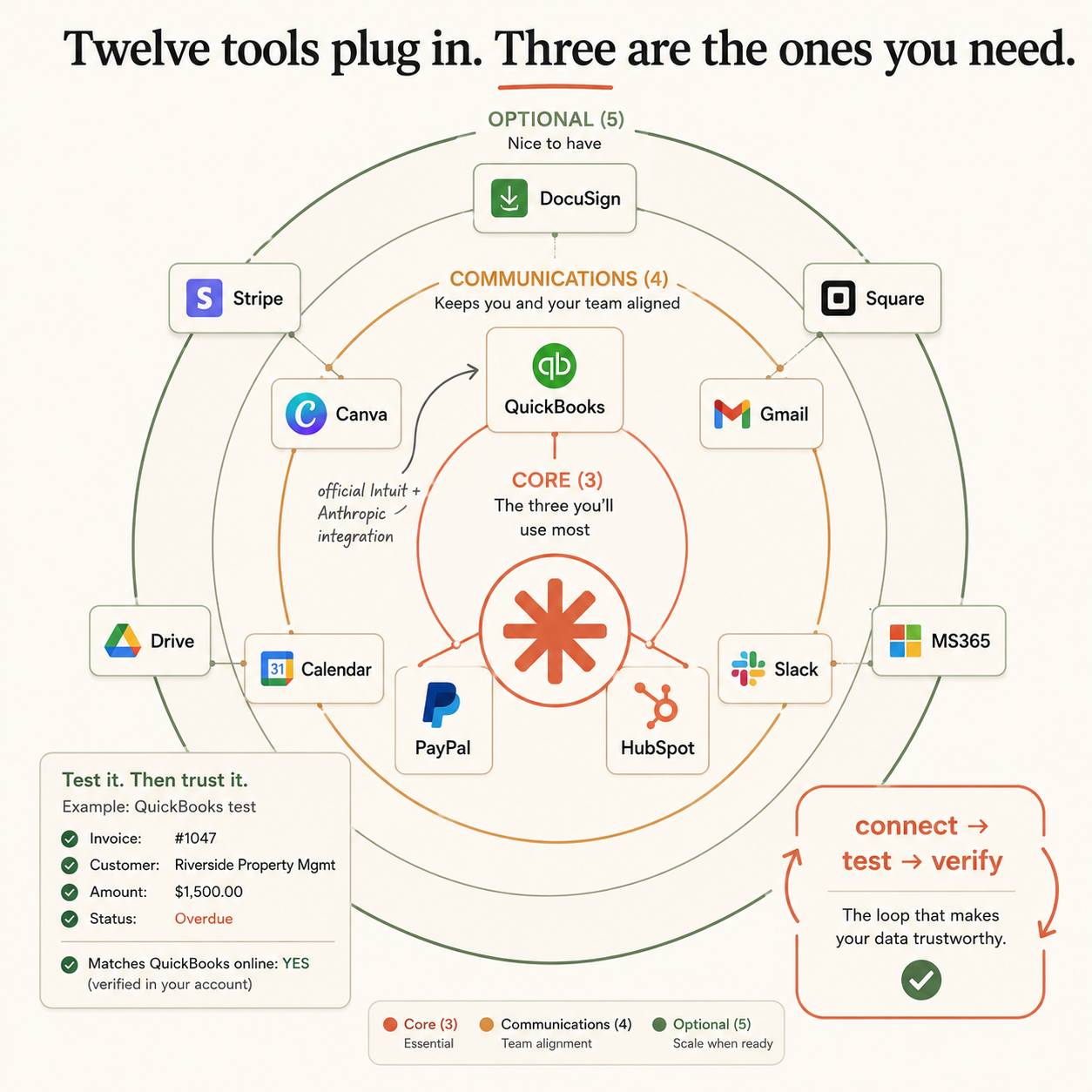
- Test. Do not trust it yet. Give it one small, real, read-only request with a definite right answer: “Show me my most recent invoice, with the customer, amount, date, and status.” You get back something like this:
Most recent invoice: #1047
Customer: Riverside Property Mgmt
Amount: $1,500.00
Status: Overdue
Matches QuickBooks: YES (verified in your own account)- Verify. Now the step almost nobody does. Open QuickBooks yourself, find invoice #1047, and check the tool against reality. Customer match? Amount? Status? If they all match, the connection is real and you can trust it for bigger jobs. If anything is off, you learned it before it could cost you, and you reconnect now instead of after it drafted a wrong invoice to a real customer.
That is the whole spine: connect, test, verify. Two minutes. Learn it once on QuickBooks and the identical loop works for every tool you ever add. The only thing that changes from tool to tool is the small test question:
QuickBooks: "Show my most recent invoice with customer, amount, date, status."
PayPal:     "Show my last three payments with payer, amount, date."
Gmail:      "Show my last two customer emails."
HubSpot:    "Show my five newest open leads."
Keep a one-line log as you go. It is the receipt that proves you verified instead of hoped, which matters double if you ever set this up for someone else:
Connector:
Date connected:
Test question:
Expected answer:
Verified against:
Result:
Recheck date:
Here is the whole loop on a second tool, to prove the shape never changes. Only the test question is different:
Connect PayPal: tell Claude to connect PayPal, sign in, approve.
Test:   "Show my last three PayPal payments, with the payer and amount."
Verify: open PayPal, check the last three transactions match.
Now Claude can see money coming in, not just money owed. Learn the one loop and the connector list could double and you would be fine, because your method does not care which tool it is.
Which tools can you connect?
Twelve ship in the box, and I confirmed the list against the plugin’s own .mcp.json config file, not a write-up. They sort into three rings. Three are core; the other nine you add only when a workflow needs them.
| Connector | Ring | What it is for |
|---|---|---|
| QuickBooks | Core | Books and invoicing |
| PayPal | Core | Payments and refunds |
| HubSpot | Core | Your CRM: contacts, deals |
| Canva | Communications | Design assets |
| Gmail | Communications | |
| Slack | Communications | Team messaging |
| Microsoft 365 | Communications | Microsoft email, files, calendar |
| DocuSign | Optional | Signatures |
| Stripe | Optional | Card payments |
| Square | Optional | Card and in-person payments |
| Google Drive | Optional | Files |
| Google Calendar | Optional | Scheduling |
Source: the knowledge-work-plugins repo, small-business/.mcp.json. Notice that between QuickBooks, PayPal, Stripe, and Square, almost every way a small business collects money is covered, and between Gmail and Microsoft 365, almost every way you do email is covered. A lot of write-ups quote “seven connectors” because that is how many Anthropic called core in the announcement. The real number is twelve.
What breaks when it quits halfway through?
The most dangerous failure is the silent one. You ask Claude to pull last month’s invoices. The connection times out partway, and it hands you a summary based on the eleven invoices it got before the timeout, not the fourteen that exist. Nothing on screen screams “I failed.” It just quietly worked with less than the full picture.
The verify step is your defense, and against this it is a specific question: does the count look right? If you know you sent about fourteen invoices and the tool is working with eleven, that gap is your signal. You say “I think there are more than that, pull the full month again,” and the second pull usually completes clean. The fix for almost every connection hiccup is the same humble move: run it again.
There is a cousin failure, stale data. The connection works fine but shows a slightly old picture because a payment that landed an hour ago has not synced yet, so an invoice still reads unpaid. This is why you never let the tool fire an overdue reminder without a glance. Your “wait, did they just pay?” instinct catches what the freshest data sometimes cannot. Connections drop and sign-ins expire after a week or two; none of that is broken. Re-authorize, re-run, re-verify.
What should you actually do?
Connect in the order you will actually use them, and verify each before adding the next.
- If you keep formal books → connect QuickBooks first. The money workflows need it.
- If you run on payments, not books → connect Stripe, Square, or PayPal first. The one you use, not all three.
- Once money is wired → connect your inbox (Gmail or Microsoft 365), because the customer workflows come alive when Claude can see email.
- If you keep a real CRM → connect HubSpot. If your “CRM” is a spreadsheet and your memory, skip it for now.
- Everything else (Canva, Calendar, DocuSign, Slack, Drive) → connect the day a workflow needs it, never preemptively. A connection you are not using is one more thing that can expire and confuse you.
The bottom line
- The connect step is trivial. The verify step is the whole point. Open the real tool and match the answer before you trust a connection with a single dollar.
- Twelve connectors ship, not seven. If your main tool is one of them, everything you need is already in the box.
- A connection that fails is almost never broken software. It is a stall or a stale sync, and the fix is to run it again and check the count. Take nothing on faith.
Frequently Asked Questions
How do I connect Claude to QuickBooks?+
In the Claude Cowork desktop app, tell Claude to connect QuickBooks. A sign-in window opens, you log into QuickBooks the normal way and click allow, and the connection is live in about thirty seconds. Then test it with one small read-only question before you trust it.
Is the QuickBooks connection safe to give access to?+
You grant read, and where a workflow needs it write, access to that one tool only. It cannot touch tools you did not connect, nothing that sends or pays happens without your approval, and you can disconnect any tool instantly to revoke access.
What if the QuickBooks connection quits halfway through?+
Connections sometimes stall or pull partial data silently, especially in a preview. The fix is almost always to run it again, then verify the result against the real QuickBooks screen. Re-authorize, re-run, re-verify; do not take the first answer on faith.