How to Schedule Recurring Tasks in Claude Cowork
Set up a Claude Cowork recurring tasks schedule with the native /schedule command, fix the laptop-sleep problem, and run three daily jobs while you sleep.
>This sets up the daily autopilot. Claude Cowork - Automate Your Job This Weekend goes deeper on chaining tasks into full workflows, the preflight checklist, and turning a running setup into income.
Claude Cowork - Automate Your Job This Weekend
50+ Automations for Email, Spreadsheets, Reports, and Daily Tasks Using Claude Computer Use
Summary:
- The native /schedule command that replaced the old paste-a-template hack.
- A full day on autopilot: three tasks, 40 minutes of Claude, zero minutes of you.
- The laptop-sleep problem, and the three fixes from free to cheap.
- The one-line log that catches a silent failure before it costs you.
Setting up a Claude Cowork recurring tasks schedule used to mean pasting a saved prompt every single morning. Not anymore. Cowork now has native scheduling built in: you hand Claude a task once, set it to repeat, and the output is waiting for you. This is the single biggest upgrade in the tool. You wake up at 6:47am, and a one-page summary is already on your phone: 127 emails processed, three urgent, eight drafted. Claude has been working since 6am, while you were asleep.
How do you schedule a recurring task in Claude Cowork?
You use the native scheduler, two ways. Type /schedule in the chat input, or click “Scheduled” in the left sidebar and hit ”+ New task.” Either one opens a small form. Here is the whole setup:
- Name the task, something like “Morning email triage.”
- Paste the prompt it should run into the prompt field.
- Pick the frequency: hourly, daily, weekly, weekdays, or manual.
- Optionally point it at a specific folder, or pick a model.
- Save.
That is it. It works on every paid plan. From now on the task fires on its schedule with no babysitting. If you are somehow on an older build that does not show /schedule, the paste-a-template fallback still works: keep the prompt in a text file and paste it each morning. For almost everyone, the native scheduler is the answer.
What does a day on autopilot look like?
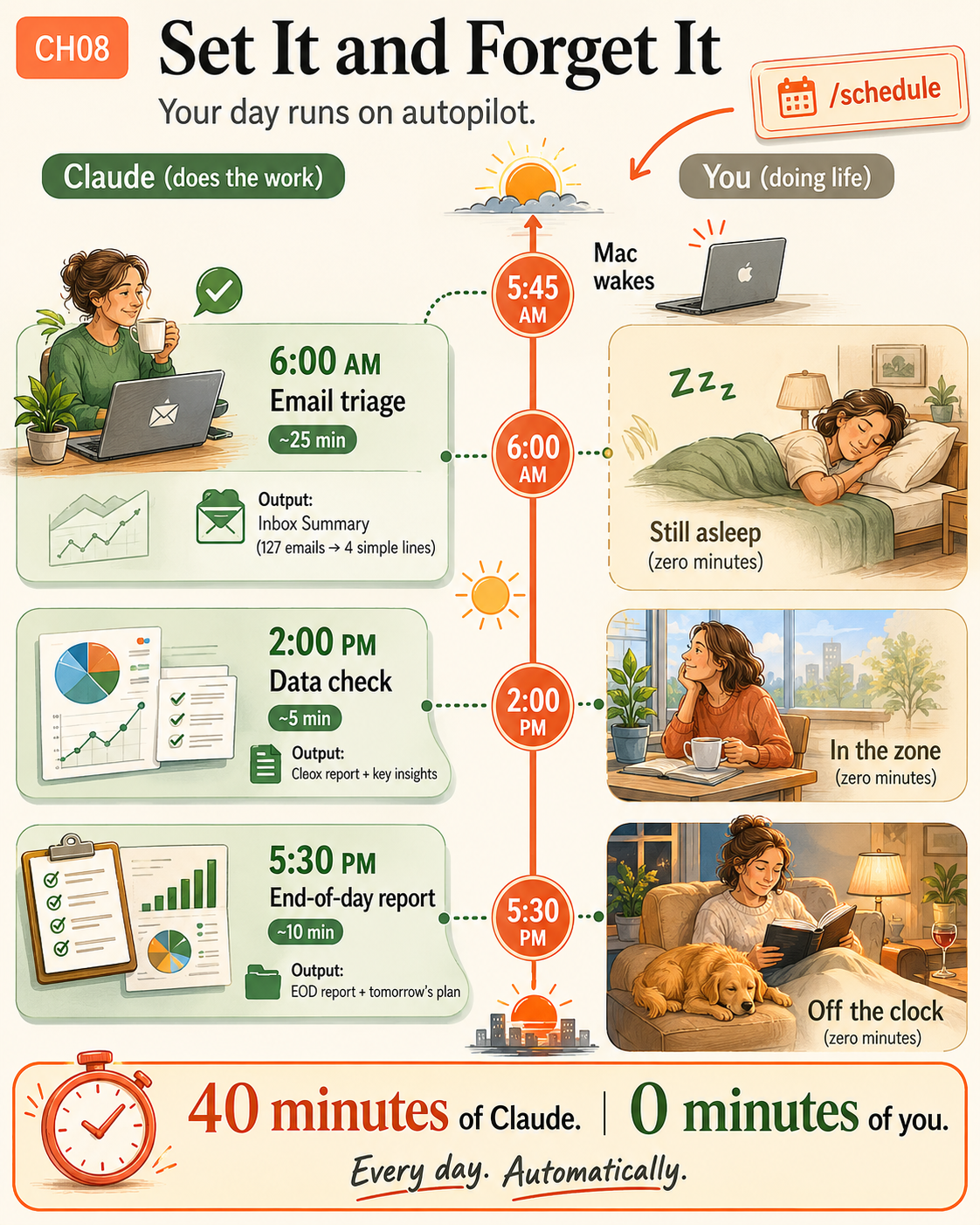
Three scheduled tasks covering morning, afternoon, and end of day. Here is the architecture:
- 5:45 AM the Mac wakes and Claude Desktop launches.
- 6:00 AM email triage runs (~25 minutes), turning 127 emails into 4 simple lines.
- 2:00 PM the data check runs (~5 minutes).
- 5:30 PM the end-of-day report runs (~10 minutes).
That is 40 minutes of Claude, 0 minutes of you. The afternoon data check watches a file and flags what changed:
Read weekly-sales.csv in my Google Drive folder. Compare it to
yesterday's snapshot (weekly-sales-snapshot.csv on my Desktop).
Report changes: new rows, deleted rows, changed values (old vs new).
If nothing changed, say "No changes since yesterday." Save as
data-check-[today's date].txt, then replace the snapshot with
today's version.
The end-of-day report wraps everything up:
Compile an end-of-day report as eod-report-[today's date].md.
Include: today's email activity, tomorrow's calendar, open action
items (check today's inbox summary and data check), and any files
Claude created today.
Each scheduled task runs as its own separate session, so the EOD task does not remember the morning conversation. That is exactly why each task saves its results to a file: the evening run reads the morning’s output files, not its memory.
How do you keep it running when your laptop sleeps?
You keep the Mac awake at run time, because scheduled tasks run only while your Mac is awake and Claude Desktop is open. This is the most upvoted Cowork question on Reddit, no contest. One user put it this way (12 upvotes, r/ClaudeAI):
“The problem: my main laptop lives in my backpack. It’s not always on, not always online, and definitely not always plugged in. That seems to break the whole mobile Cowork story, since Dispatch needs a host machine that’s awake and connected.”
Good news first: a missed run is not lost. If the Mac was asleep at 6am, Cowork skips that run and fires it automatically the moment you wake the machine. But to actually fire at 6am while you sleep, the Mac has to be awake then. Three fixes, free to cheap:
- Prevent sleep (free). System Settings, Energy or Battery, enable “Prevent automatic sleeping when the display is off.” Leave the lid open and plugged in.
- Schedule a wake (free, if your Mac has it). Look for a Schedule button under Battery or Energy Saver, set a wake for 5:45am, and add Claude Desktop to Login Items so it launches on wake. Some Apple Silicon laptops hide this button; keep those plugged in with the lid open instead.
- Dedicated Mac Mini (cheap). A used Mac Mini runs $200 to $400, sits in a corner always on, and runs your tasks 24/7 without touching your daily machine. The same always-on-host fix the Reddit thread’s top reply landed on: “i just ended up building a small server.”
How do you know it actually ran?
You add one line to every task prompt so each run logs itself:
Append a line to task-log.txt on my Desktop:
[date] [time] [task name] [status: SUCCESS/FAIL] [summary].
After a week, the log reads at a glance:
Mon 06:27 email-triage SUCCESS 127 emails, 3 urgent, 8 replies
Mon 14:05 data-check   SUCCESS 3 new rows, no anomalies
Tue 17:38 eod-report   FAIL    internet timeout during calendar check
Wed 06:25 email-triage SUCCESS 112 emails, 4 urgent, 7 replies
One file, one line per run. You spot a failure the day it happens instead of two weeks later when someone asks why you missed something.
What broke (and the fix)
A silent failure ran for two days before I caught it. My afternoon data check kept “succeeding” but produced nothing, because my Google Drive sync had quietly paused and Claude could not read the file. Without the log, I would not have noticed until a client asked “why did you miss the sales drop?”
The fix was the task-log line above, plus a quick preflight before trusting any scheduled job. The two things that silently break a scheduled task: an expired connector token (OAuth tokens lapse every couple of weeks, so confirm the connector shows “connected,” not “re-authenticate”) and a moved or renamed file (the prompt names an exact path, and a changed filename kills it). Check those first when a task starts failing.
What should you actually do?
- To schedule anything → use
/scheduleor the Scheduled sidebar. Do not reach for cron, Zapier, or macOS Task Scheduler. The scheduler is built in. - Start with three tasks: morning email, afternoon data check, end-of-day report. Add more only when you feel a real gap.
- To fire while you sleep → keep the Mac awake (prevent sleep or scheduled wake) and add Claude Desktop to Login Items. For true 24/7, use a dedicated Mac.
- Add the task-log line to every recurring prompt. It is one sentence and it pays for itself the first time it catches a silent failure.
- When a task starts failing → check the connector token and the file paths before anything else.
The bottom line
- Native
/scheduleis why this is a system, not a parlor trick. Anyone still teaching the paste-a-template hack or an external cron job is teaching the old version. - A scheduled task is only as reliable as the machine under it. Solve the laptop-sleep problem first, or your 6am run quietly waits until lunch.
- Log every run. An unmonitored automation that fails silently is worse than no automation, because you trust output that stopped arriving.
Frequently Asked Questions
How do I schedule a recurring task in Claude Cowork?+
Type /schedule in the chat input, or click Scheduled in the left sidebar and hit + New task. Name it, paste the prompt, pick a frequency (hourly, daily, weekly, weekdays, or manual), and save. It works on every paid plan.
Will scheduled tasks run when my Mac is asleep?+
No. Tasks run only while your Mac is awake and Claude Desktop is open. A run that fires while you are asleep is skipped, then runs automatically when you wake the machine. To fire on time, keep the Mac awake or set a scheduled wake.
Does running scheduled tasks cost extra?+
No. Claude Pro is a flat $20/month and three daily tasks sit comfortably inside it. Very heavy use can bump Pro's limits, where Max raises the ceiling, but for a few daily jobs Pro is plenty.