How to Set Up Claude Computer Use on Mac
A complete Claude Computer Use setup on Mac: enable the toggle, grant the two permissions, connect your folders, and verify it all works in 15 minutes.
>This gets Computer Use running and verified. Claude Cowork - Automate Your Job This Weekend goes deeper on connectors, the eight automations you build over a single weekend, and the scheduling that runs them while you sleep.
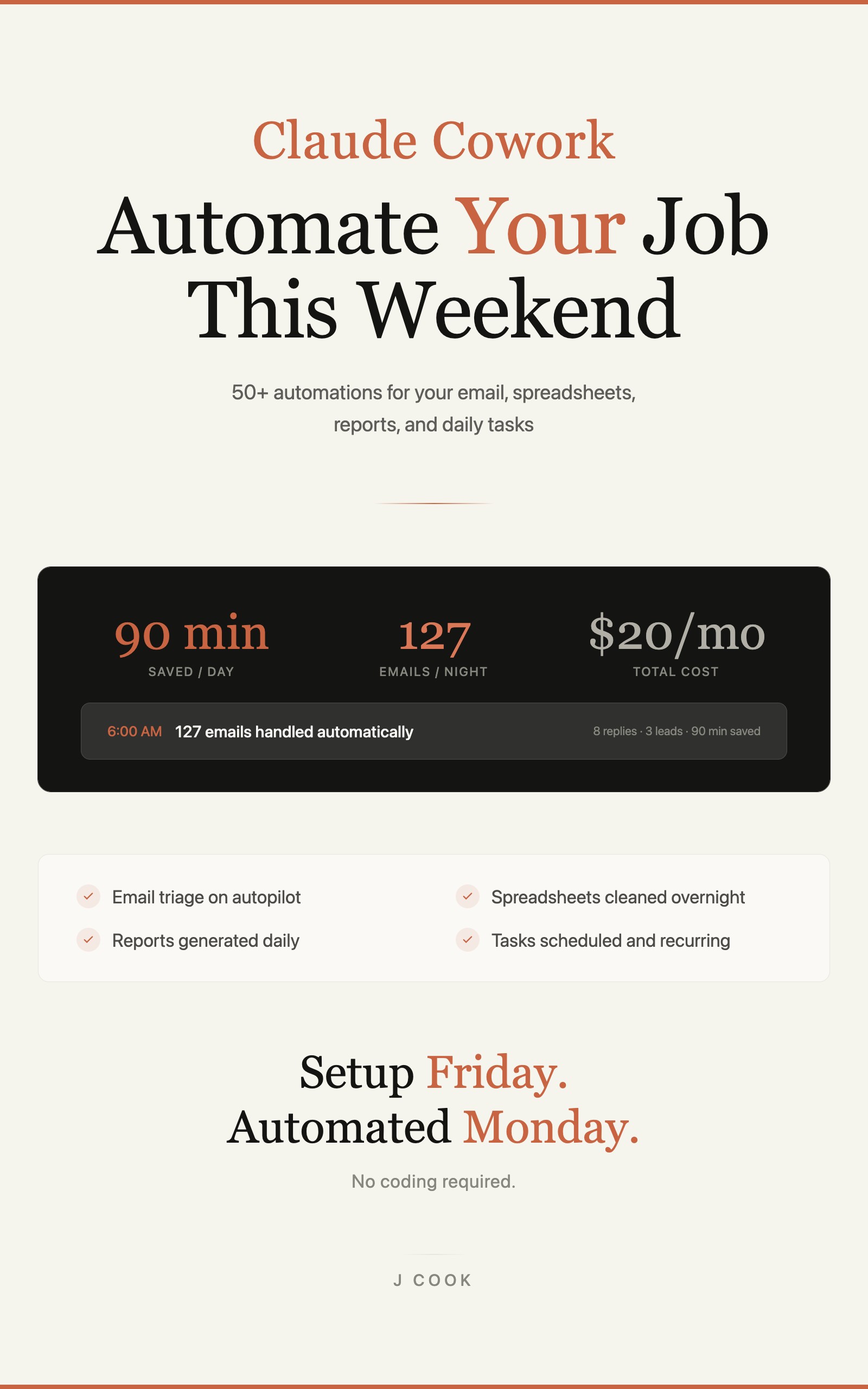
Claude Cowork - Automate Your Job This Weekend
50+ Automations for Email, Spreadsheets, Reports, and Daily Tasks Using Claude Computer Use
Summary:
- The three things you need before you start (and the plan gotcha that blocks some accounts).
- Enable Computer Use and grant the two macOS permissions that make it actually work.
- The three ways Claude reaches your files, fastest to slowest.
- Two verification tasks that prove it works in under a minute.
Here is the Claude Computer Use setup Mac users actually need, and it takes about 15 minutes, not the three hours one guy filmed himself fighting through. He spent forty minutes lost on the API docs, thirty more confused about why nothing moved on his screen, and an hour chasing a VPN error. He skipped the permission settings. That is the whole problem with most setups: the steps are simple, but one missed toggle leaves you with a smart chatbot that cannot touch your computer. Here are the steps, in order, with the gotchas called out.
What do you need before you set up Claude Computer Use on a Mac?
Three things, and you probably have all of them. A Mac on macOS 11 (Big Sur) or later, a Claude Pro subscription, and a stable internet connection.
Here is the gotcha nobody warns you about: Computer Use is a research-preview feature on the Pro and Max plans only. Team and Enterprise plans do not have it right now. If your only Claude login is a work Team account, you will not find the toggle in the next step, and you will think you did something wrong. You didn’t. A personal Pro plan at $20/month is the fix, and that is the entire cost of everything here. Claude Desktop also runs on Windows now, but these click-by-click steps use a Mac. Linux is not supported.
To check your macOS version: Apple menu, About This Mac. If it says 11 or higher, you are good.
How do you enable Computer Use?
You flip one toggle and grant two permissions. Here is the exact order.
- Go to claude.ai/download and get the Mac desktop app. If the page is talking about API keys or SDKs, you are on the developer docs, which is the wrong page. You want the consumer app with a big download button.
- Open the .dmg, drag Claude to Applications, launch it, and sign in. Your Pro subscription carries over from the web.
- Open Settings (Command+Comma), go to General, and turn on the Computer use toggle.
- macOS throws a permissions dialog. Grant Screen Recording (so Claude can see your screen) and Accessibility (so it can move your mouse and type). Both live in System Settings, Privacy and Security. Find Claude Desktop in each list and switch it on.
- Quit Claude fully with Command+Q (not just closing the window) and reopen it.
There is no glowing “Computer Use ON” banner. The app looks the same. The difference shows up the first time you give it a task. One nice touch: the first time Claude reaches for a new app, it asks your permission for that specific app. Nothing gets touched until you okay it.
What broke on day one (and the fix)
Every failure I have seen during setup is one of four things. Here is each one and the fix.
- Claude types its answer in the chat instead of acting. Computer Use is off, or your request was vague. Confirm the toggle and permissions, then be explicit: not “organize my files,” but “open Finder, go to Downloads, and create subfolders named Documents, Images, and Other.”
- Claude tries to click and nothing happens. Accessibility permission is not granted. Turn it on in System Settings, Privacy and Security, Accessibility, then restart the app.
- You see a “connection” or “timeout” error. Usually your network, often a VPN blocking Anthropic’s servers. Disconnect the VPN and retry.
- Claude freezes after the first screenshot. Give it 5 to 10 seconds. The first action of a session is slower because Claude is processing your full screen for the first time.
One more thing that bites people on day two: notification banners. Claude reads a screenshot, and a banner popping over a button gets clicked by mistake. Turn on Do Not Disturb before any task. Keep your Dock visible too, so Claude is not hunting for hidden icons.
How does Claude actually reach your files?
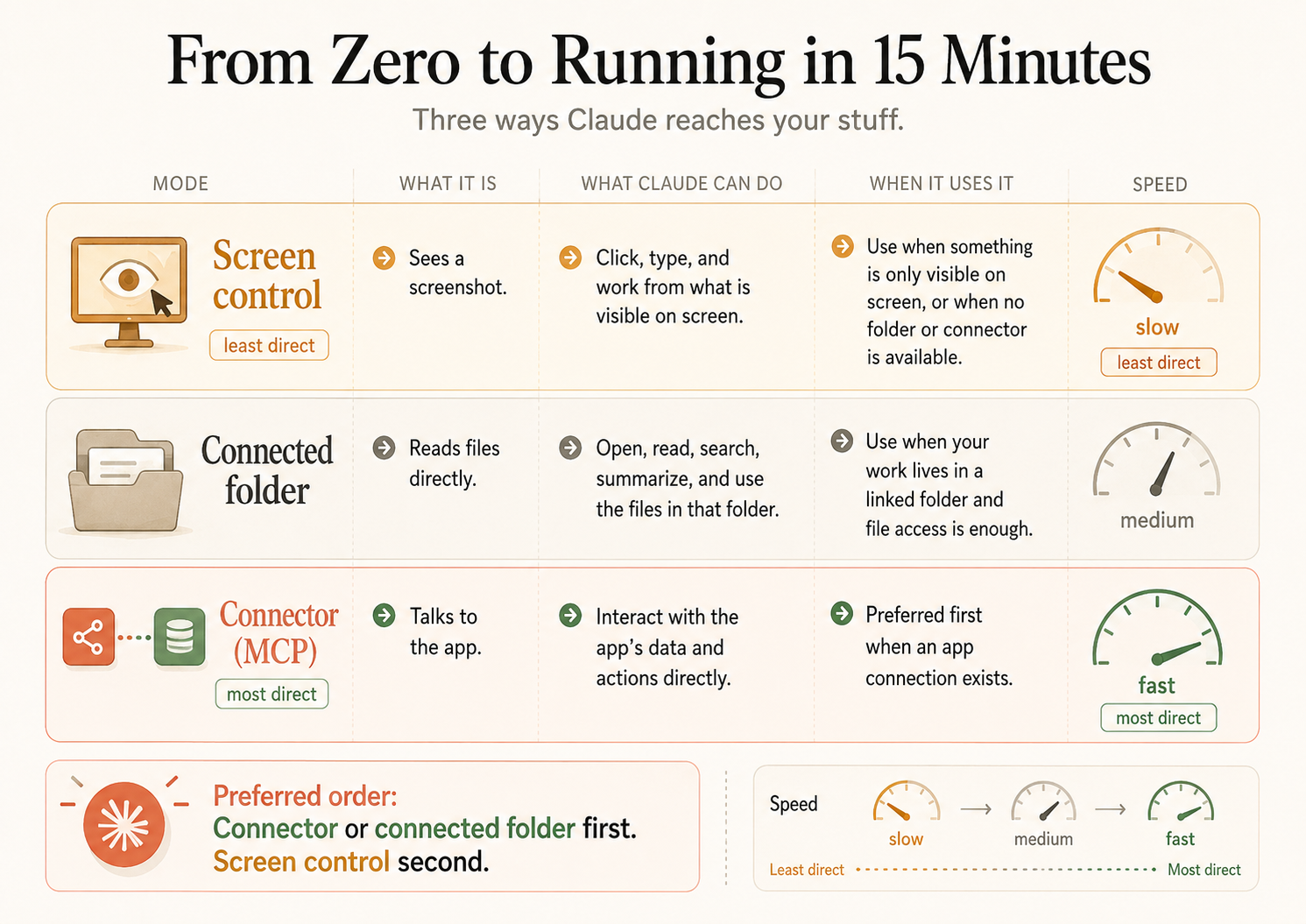
Three ways, and the order matters because it explains most of the slowdowns people hit later. From most direct to least:
| Mode | What it is | Speed |
|---|---|---|
| Connector (MCP) | Talks to the app through a direct data pipe | Fast (most direct) |
| Connected folder | Reads files in a folder you granted, character-perfect | Medium |
| Screen control (Computer Use) | Sees a screenshot and works from what is visible | Slow (least direct) |
The rule Claude follows: connector or connected folder first, screen control second. Most “why did Claude screenshot that instead of just reading it?” moments come from not having the connector or folder set up yet. So set your connected folders now: in Settings, add your Documents, Downloads, and Desktop folders. Do not add your entire home folder, it just makes file operations slower.
The fastest mode, a connector or MCP server, is a direct line to a service or your local files. The official local-file server is a real npm package, and you point it at the folders you want Claude to reach:
npx -y @modelcontextprotocol/server-filesystem /Users/username/Desktop /Users/username/DownloadsThat package is @modelcontextprotocol/server-filesystem, latest version 2026.1.14 on npm. It needs Node.js installed (node --version to check). If wiring up a server sounds like too much on day one, skip it: connected folders plus Computer Use handle file tasks fine, and the server is a speed upgrade you can add later.
How do you verify Computer Use works?
Run two tasks. The first proves the machinery. Type this into Cowork:
Open TextEdit and create a new document. Type "Hello from Claude
Computer Use" and save it to my Desktop as cowork-test.txt
Claude screenshots your desktop, opens TextEdit, types the text letter by letter, and saves the file. About 30 to 45 seconds. Look at your Desktop: there is cowork-test.txt.
Now something that previews the real power:
Open Safari, go to google.com, search for "weather today," and
tell me the current temperature in the chat.
Claude browses the web on your behalf, reads the temperature off a live page, and reports it back. One more, to see it read your filesystem through the real Finder window:
Open Finder, go to my Downloads folder, and list the 5 most
recently downloaded files.
Trivial tasks, all three. But that is the exact mechanism behind email triage, spreadsheet cleaning, and every other automation. The building block is the same. The complexity scales.
What should you actually do?
- If the Computer use toggle is missing → check your plan. Team and Enterprise are excluded; switch to a personal Pro account.
- If Claude describes steps instead of doing them → Computer Use is off or your prompt was vague. Fix both.
- If a task is slow or Claude misreads a number → move it from screen control to a connected folder or connector. Direct reads are character-perfect; screenshots are not.
- If you want the fastest file access → install the filesystem MCP server and point it at your working folders. If that feels like too much, connected folders are enough to start.
- Before any task → turn on Do Not Disturb and keep your Dock visible.
The bottom line
- The setup is not the hard part. One toggle, two permissions, a full restart. If Claude is “just chatting,” you missed the toggle or a permission.
- The plan gate trips up more people than the permissions do. Computer Use is Pro and Max only. A work Team account will not show it.
- Connected folders and connectors are not optional polish, they are how you get speed and accuracy. Set folders first, add the filesystem server when you feel the bottleneck.
Frequently Asked Questions
What do I need to set up Claude Computer Use on a Mac?+
A Mac on macOS 11 (Big Sur) or later, a Claude Pro or Max plan ($20/month for Pro), and a stable internet connection. Team and Enterprise plans do not include Computer Use right now.
Which permissions does Claude Computer Use need?+
Two macOS permissions: Screen Recording so Claude can see your screen, and Accessibility so it can move your mouse and type. Grant both in System Settings, Privacy and Security, then fully restart Claude Desktop.
Why is Claude typing in the chat instead of controlling my Mac?+
Computer Use is not enabled, or the permissions are not granted. Turn on the Computer use toggle in Settings, General, grant Screen Recording and Accessibility, and quit and reopen the app with Command+Q.