How to Build an Email Triage System with Claude
Automate email with Claude Cowork: a morning triage system that reads your inbox, drafts the replies, and hands you a one-page summary before you wake up.
>This builds the morning triage system. Claude Cowork - Automate Your Job This Weekend goes deeper on the job-application pipeline, the follow-up catcher, and scheduling the whole thing to run before you wake up.
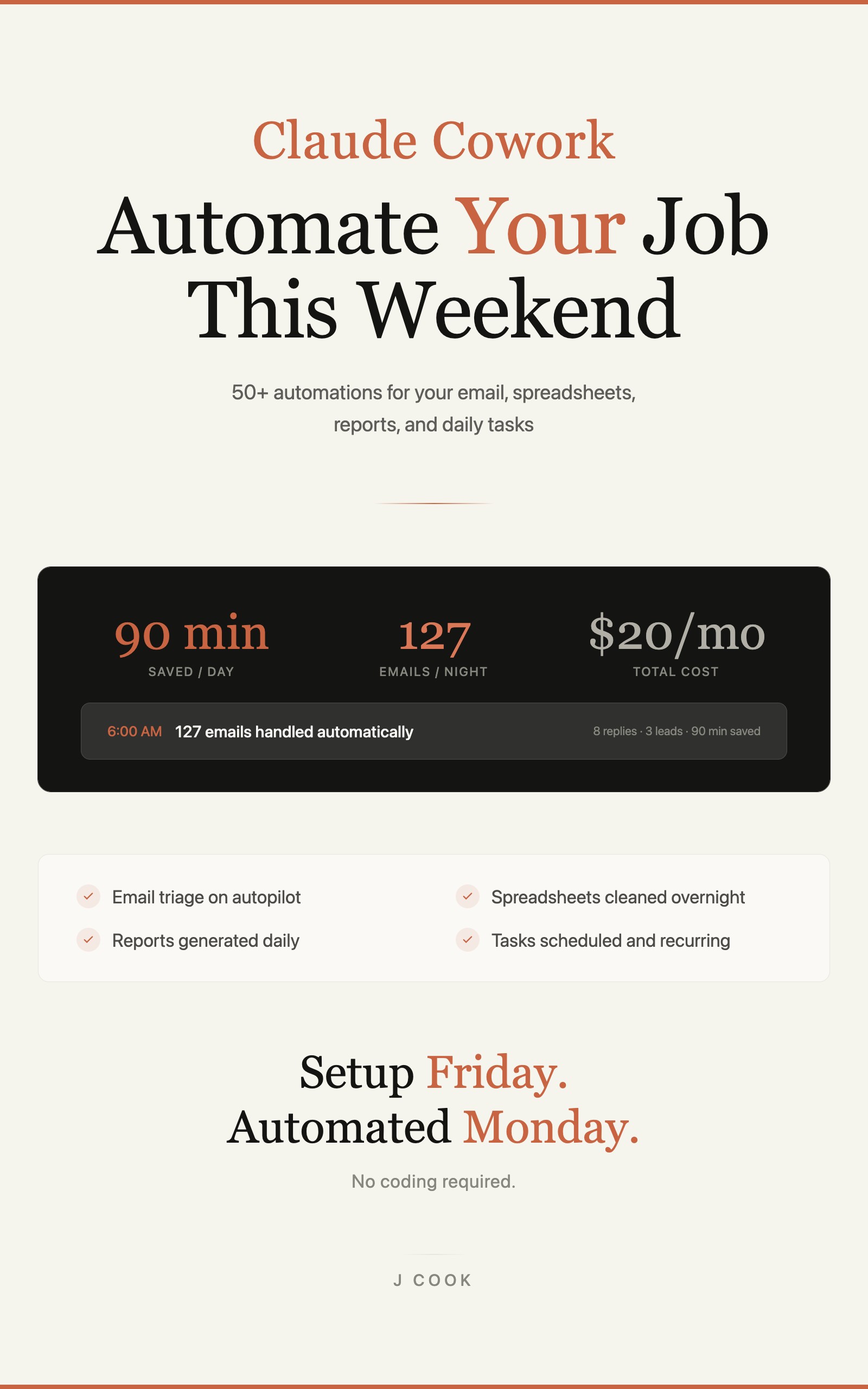
Claude Cowork - Automate Your Job This Weekend
50+ Automations for Email, Spreadsheets, Reports, and Daily Tasks Using Claude Computer Use
Summary:
- The one thing that turns this from a toy into a system: you write the rules, not Claude.
- The full triage prompt, copy-paste ready.
- The morning summary it produces, and the exact numbers behind it.
- Why the Gmail connector drafts but never sends, and how to send safely anyway.
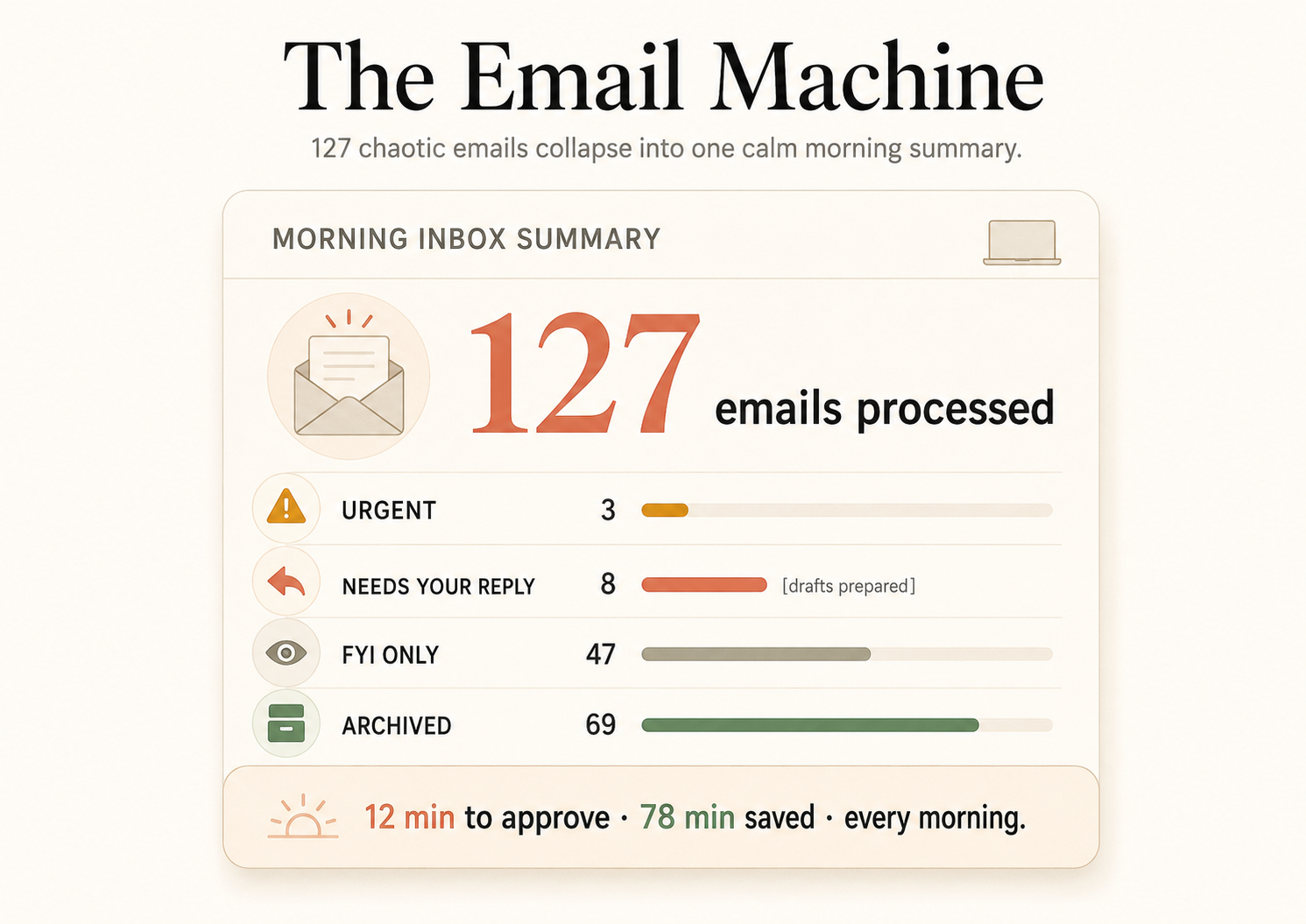
To automate email with Claude Cowork, you hand it a rules file and let it triage your inbox before you wake up. I used to wake up to 127 emails and burn 90 minutes sorting, replying, flagging, and deleting before I started the work I actually get paid for. Now I open a one-page summary on my phone at 6:47am: three urgent items, eight that need a reply with drafts already written, everything else sorted. Twelve minutes to review and approve. Seventy-eight minutes back, every morning.
What makes email triage with Claude actually work?
You define the categories. You write the rules. Claude follows them. That is the whole difference between a toy and a system. If you let Claude decide what counts as urgent, it flags newsletters that mention a deadline and buries a real deadline written in casual language. With rules, it is consistent.
Open a text file and write your triage categories. Here is the template:
EMAIL TRIAGE RULES

SKIP (do not read or process):
- Any email from [your bank], [your doctor], [HR]

URGENT (action within 4 hours):
- Emails from: [boss], [key client], [partner]
- Subject contains: "deadline", "today", "ASAP", "overdue"
- A reply in a thread I started, waiting 3+ days

NEEDS MY REPLY (within 24 hours):
- Direct questions to me, meeting requests, client questions

FYI (read when convenient):
- Team updates, newsletters I actually read, tool digests

ARCHIVE (no action):
- Marketing, social notifications, receipts, newsletters I skip
Save it as email-rules.txt on your Desktop. The specific names matter. “Any email from Sarah” beats “any email from important people,” because Claude does not know who you think is important. Be explicit.
How do you run the triage?
You paste one prompt. It is long because specificity prevents mistakes:
Read email-rules.txt on my Desktop. Open Gmail in Safari (or
Outlook/Apple Mail). Read all unread emails. Categorize each one
using the rules. For "Needs My Reply" emails, draft a reply from
the thread context. Save a summary to my Desktop called
inbox-summary-[today's date].txt with sections: URGENT (sender,
subject, why), NEEDS MY REPLY (sender, subject, the draft), FYI
(sender and subject), ARCHIVE (count only). Do not archive anything
on this first run. Instead label every archive candidate
"Claude-Archive-Review" so I can check them.
Each email takes about 10 to 15 seconds to process. For 127 emails, that is roughly 20 to 25 minutes of Claude working while you are in the shower. The “do not archive on the first run” line is deliberate: archiving on rules you have not calibrated yet is how you lose something important. Label first, watch for a week, then switch the prompt to archive directly once the candidates are consistently right.
What does the morning summary look like?
A one-page document you read in about 12 minutes. Here is the shape of it:
MORNING INBOX SUMMARY
Processed: 127 emails

URGENT (3):
- Client X: deadline moved to Friday, needs confirmation TODAY
- Vendor Y: invoice dispute, $2,400 discrepancy
- Team lead: status update before 10am standup

NEEDS YOUR REPLY (8):
[Draft replies prepared for each - review and approve]

FYI ONLY (47): newsletters, notifications, auto-receipts

ARCHIVED (69): marketing, social, spam that passed filters
Three urgent, eight needing a reply with drafts ready, 47 FYI, 69 archived. The math that matters: 12 minutes to approve, 78 minutes saved, every single morning. The eight draft replies are where the real time goes. Claude reads each thread, figures out what the sender is asking, and writes a response in your voice. A draft lands in the summary looking like this:
DRAFT REPLY for David Kim - Q3 proposal timeline:

"Hi David, Thursday is tight but doable. I will have the draft over
by end of day Thursday. If anything changes I will let you know by
Wednesday. Attaching the updated pricing sheet."

NOTE: Attach pricing sheet before sending.
My review time runs about 90 seconds per reply instead of the 5 minutes it used to take to compose one from scratch.
Can the Gmail connector send your replies?
No. This is the one nuance that trips everyone up, so keep it straight. The Gmail connector is draft-only by design. Straight from Anthropic’s connector documentation:
“Can Claude send emails on my behalf? No. Claude can create email drafts, but all emails must be sent manually through your Gmail account.”
So the connector can:
- Search and read emails with natural-language queries
- Draft replies with full thread context
- Manage labels and threads
- List your saved drafts
What it cannot do is click Send. If you want Claude to actually send, that is the Computer Use path: Claude screen-drives your email client, opens the thread, pastes the reply, and clicks Send only after it pauses for your approval. Computer Use can send with approval; the connector cannot send at all. That is why “send the replies” does nothing on the connector path and people think it broke. It didn’t. Different path, different capability.
What broke (and the fix)
The expensive mistake was auto-send. Three weeks in, I added a rule: “for scheduling confirmation emails, send the reply directly without asking.” Day two, a client asked to move a meeting from Tuesday to Thursday. Claude saw the word “scheduling,” applied the rule, and sent “Sounds good, confirmed for Tuesday at 2pm.” The exact opposite of what she asked. I showed up Thursday to an empty room. She had been waiting Tuesday.
The lesson: the mistakes are not random, they are systematic. The rule was too broad and Claude executed it literally. So the rule that never comes off is never auto-send to an external recipient. Drafts are free to generate; sending always waits for you.
The other thing that broke early was accuracy. My triage started around 80%, meaning one in five emails was miscategorized. A week of rule tuning got it to about 95%. The trick is to watch the category sizes: if URGENT has more than five items, your urgency rules are too broad; if ARCHIVE is under 40% of the total, your archive rules are too narrow.
What should you actually do?
- If you are setting this up today → write
email-rules.txtfirst, with real names and real trigger words. The system is only as good as the rules. - If you use the Gmail connector → expect drafts, not sends. You hit Send yourself. Clean and safe.
- If you want Claude to send for you → use Computer Use, keep approval on, and never auto-send externally.
- If your accuracy is below 90% → tune the rules for a week before you trust it. Watch the category sizes.
- If you use Outlook or Apple Mail → the same prompt works through Computer Use; Gmail in a browser is just the most reliable.
The bottom line
- The rules file is the product. Claude following your explicit categories is what makes triage consistent; Claude guessing is what makes it a toy.
- Drafts are safe, sending is not. The Gmail connector cannot send, and that is a feature. Keep a human on the Send button.
- One wrong auto-sent email costs more than every minute the system saves. Build it supervised, earn the trust, and even then keep the no-auto-send rule permanently.
Frequently Asked Questions
Can Claude automatically send my email replies?+
Not through the Gmail connector, which is draft-only by design. It reads, labels, and drafts, but you send. If you want Claude to click Send, that runs through Computer Use, and only after it pauses for your approval.
How does Claude know which emails are urgent?+
You tell it. You write an email-rules.txt file with your own URGENT, NEEDS REPLY, FYI, and ARCHIVE categories, naming specific senders and trigger words. Claude follows your rules instead of guessing.
Does this work with Outlook, not just Gmail?+
Yes. Through Computer Use, Claude can screen-drive Gmail, Outlook, or Apple Mail. Gmail in a browser is the most reliable, but the same triage prompt works on any client you can see on screen.