How to Get Your First 5 OpenClaw Agents Working This Week
Turn the OpenClaw you installed into five jobs that sort your inbox, check your calendar, file your downloads, write your meeting notes and brief you at 6:30. Each one is a single pasted command that you run once by hand and switch on when it prints a good status.
>This covers your first five jobs. OpenClaw: Ship 30 AI Agents in 30 Days gives you all 30 templates, from invoice reminders and lead scoring to a four-agent team, plus the 30-day plan to ship the ones that fit your work.
OpenClaw: Ship 30 AI Agents in 30 Days
The No-Code AI Workflow Playbook
Hello builders,
By Friday you can have five OpenClaw agents working for you: your inbox sorted at 7:00, tomorrow’s calendar checked at 20:00, and a briefing written before you’re out of bed. A post on r/openclaw with hundreds of upvotes asks “Why is everyone so hyped over OpenClaw? I cannot find any use for it,” and it drew hundreds of comments because a lot of people hit the same wall right after the test prompt. If you’re wondering what to do with OpenClaw, here’s my answer: five scheduled jobs, each one a single command you paste, run once by hand and switch on.
A quick word on “agents.” OpenClaw calls a scheduled job an automation, and a fresh install comes with exactly one agent, named main. So the five agents here are five jobs run by that one agent, the same way one assistant can carry five standing tasks, and that is how the product is meant to be used.
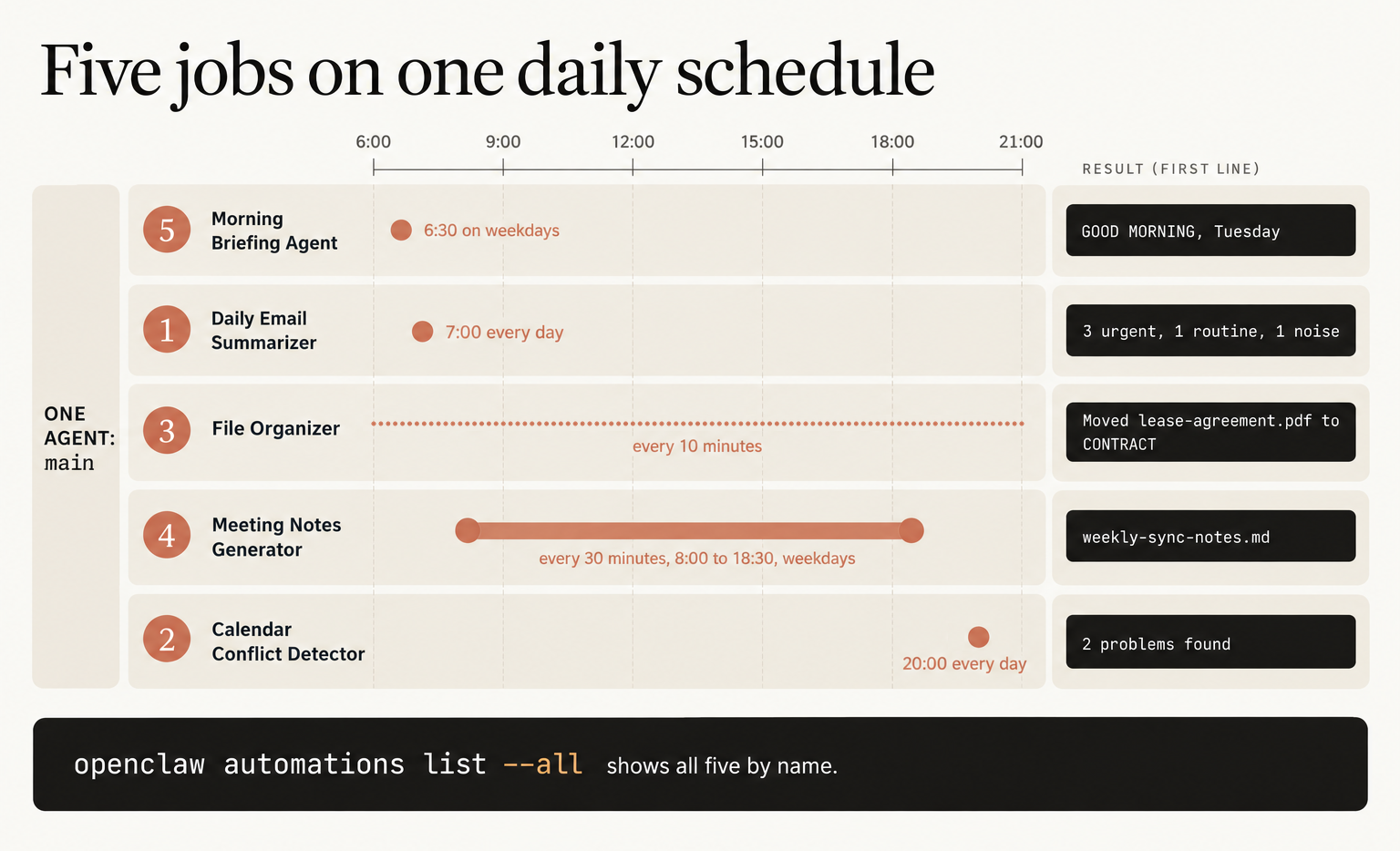
Here’s the day those five jobs give you. The Morning Briefing Agent lands at 6:30 on weekdays and opens with “GOOD MORNING, Tuesday.” The Daily Email Summarizer runs at 7:00 every day and starts with a count like “3 urgent, 1 routine, 1 noise.” The File Organizer checks one folder every 10 minutes and reports lines such as “Moved lease-agreement.pdf to CONTRACT.” The Meeting Notes Generator looks for new transcripts every 30 minutes from 8:00 to 18:30 on weekdays and writes a file like weekly-sync-notes.md. At 20:00 the Calendar Conflict Detector reads your next three days and comes back with something like “2 problems found,” each with a suggested fix.
Start with the briefing
Two of the five read your Google account, and connecting Google is the slow step, because it starts with creating a Desktop OAuth client in Google’s cloud console. So we start with the job that needs nothing. The weather skill is ready on a fresh install, and this is the briefing’s first version. Before we paste it, we swap Denver for our own city and America/Los_Angeles for our own zone, such as Europe/London:
openclaw automations create "30 6 * * 1-5" "Write my morning briefing for today.
Use the weather skill to get the forecast for Denver, Colorado.
Format:
GOOD MORNING, then the day of the week.
WEATHER: one line with the high, the low and any rain or snow.
WEAR OR CARRY: one line of practical advice from that forecast.
Keep it under 80 words. No filler." \
  --name "Morning Briefing Agent" --agent main --tz "America/Los_Angeles" --session isolated \
  --timeout-seconds 300 --no-deliver --disabled --declaration-key book.morning-briefing
We read it from the left. 30 6 * * 1-5 means 6:30, Monday to Friday. The plain English in the second set of quotes is the job itself, and it is the part we rewrite most. --disabled and --no-deliver create the job switched off and silent, so nothing runs until we’ve tested it. --timeout-seconds 300 stops a stuck run after five minutes, because a job with no limit can keep going for up to an hour. --declaration-key makes the command safe to paste twice. I pasted a create command twice on OpenClaw 2026.9.8 and the second paste came back "created": false, "updated": true with the same id, so when we change a job, we edit the command and paste it again. One rule inside those quotes: no double quotes, backticks, dollar signs or exclamation marks, or the paste breaks in your shell.
Now we test it:
openclaw automations list --all
openclaw automations run <jobId> --wait
openclaw automations enable <jobId>
The first command gives us the job’s id, which goes where <jobId> sits, without the angle brackets. The second runs the job once, right now, and waits for the result. Then we read the status line. A good run prints "status": "ok" and "completionStatus": "succeeded", and a failed run prints "ok": true right alongside its error, so that line tells you nothing. When the briefing reads the way we want, the third command switches the schedule on.
Then the other four
The File Organizer and the Meeting Notes Generator need nothing connected either. Point the organizer at a test folder of throwaway files first, ~/openclaw-test/inbox, because a hand run is a real run and it really moves files. Its prompt fences it in: never delete a file, never overwrite one, never touch anything outside that folder. Once it sorts the test folder the way you want, we change the three folder paths in its prompt (the folder it reads, the folder it sorts into and the fence in its rules line) to your Downloads folder and paste the command again.
Then we give Google a sitting of its own. gog is the small program OpenClaw uses for Gmail, Calendar, Drive and Sheets, and its README walks the OAuth setup. With it connected, paste the email summary, the calendar check and the full briefing, which adds today’s events and up to three messages that need a reply. It carries the same key, so it replaces the weather-only version. Every Google prompt tells the agent to pass gog its --readonly flag, and the mail ones add --gmail-no-send, so the job reads your inbox and has no way to send from it.
The schedule is the first thing we tune, and the OpenClaw schedules page lists the shapes a job can take:
- every: “Fixed interval (
10m,1h,1d)” - cron: “5-field or 6-field cron expression with optional
--tz” - at: “One-shot timestamp (ISO 8601 or relative like
20m)” - on-exit: “Fire once when a watched command exits”
The same page warns that “Cron expressions without --tz use the Gateway host timezone,” which is why every command here names its zone.
Here’s what I’d watch in week one: the File Organizer. Every 10 minutes is 144 runs a day, and each run is a model call even when the folder is empty. Do you need tidy folders every 10 minutes, or would 18:00 do? If evening is enough, 0 18 * * * runs it once a day. After a full day, openclaw gateway usage-cost --all-agents shows what the five cost on your machine, and your provider’s billing page shows the real bill.
I keep every create command I run in one text file, so a rebuilt install is five pastes away. All five commands, plus the other 25, are free in the book’s companion repo, one file each. When all five have run clean, openclaw automations list --all shows them by name, next to the three jobs OpenClaw creates for itself, the heartbeat among them. We leave those three alone.
Now go build something this weekend!
John Cook