Install Paperclip AI and Launch Your First AI Company
How to install Paperclip AI: run one npx command, pass the doctor check, open the dashboard at localhost:3100, and create your first AI company and issue.
>This stands up the control plane. Zero-Human Companies goes deeper on wiring Hermes in as a worker, governance gates, and the five businesses you can run on it.
Zero-Human Companies
Build an Autonomous AI Business with Hermes Agent + Paperclip
Summary:
- Install Paperclip with one
npx paperclipai onboardcommand.- Pass the
doctorcheck, then open the dashboard athttp://localhost:3100.- Create your first company in the dashboard and your first issue from the CLI.
- Copy-paste install commands plus the one failure (embedded Postgres on WSL2) and its fix.
Here is how to install Paperclip AI and have a live control plane in about ten minutes. Paperclip is the orchestration layer for an autonomous AI company: it holds your agents, schedules their work, tracks cost, and keeps an audit trail. This article gets it running, gets the doctor green, and creates your first company and issue. Wiring an actual agent into it is the next step; this is the foundation everything sits on.
What do you need before installing Paperclip?
Node.js 20+ and pnpm 9+. Check both first:
node --version    # want v20.x or higher
pnpm --version    # want 9.x or higher
If pnpm is missing, npm install -g pnpm. You do not install PostgreSQL. Paperclip ships an embedded Postgres that starts with the server, which is enough for everything here.
How do you install Paperclip AI?
One command does the whole install:
npx paperclipai onboard --yesThat downloads the paperclipai package, runs the onboarding wizard accepting defaults, scaffolds config at ~/.paperclip/instances/default/config.json, initializes the embedded PostgreSQL, and generates a secrets master key. Add --run to start the server in the same step. The on-disk layout it creates:
~/.paperclip/
├── context.json
└── instances/
    └── default/
        ├── config.json
        ├── db/
        ├── data/storage/
        ├── secrets/master.key
        └── logs/
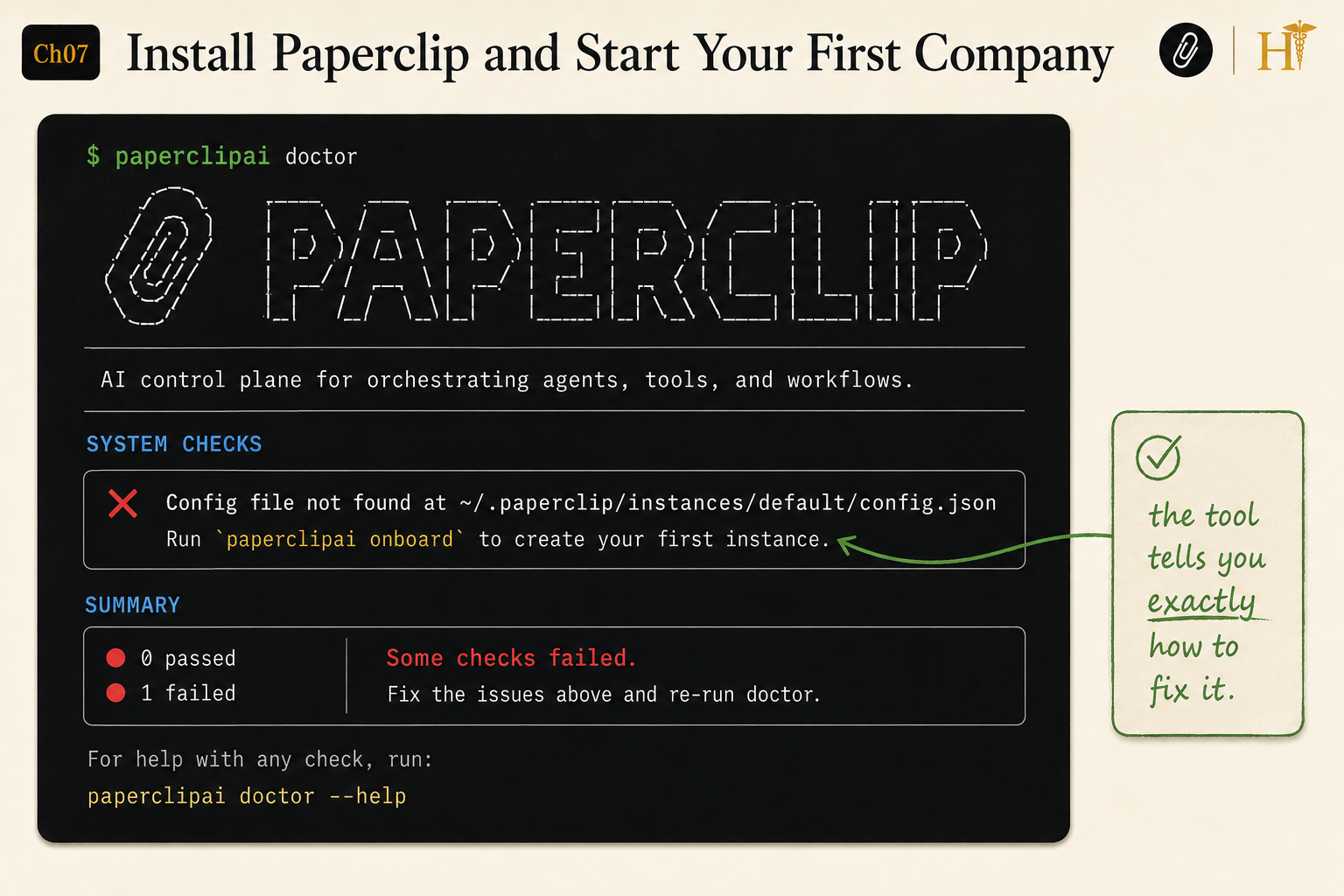
Why does doctor say 0 passed, 1 failed?
Because you have not onboarded yet, and that is exactly what the doctor is supposed to tell you. On a fresh machine, npx paperclipai doctor prints this:
PAPERCLIP
AI control plane for orchestrating agents, tools, and workflows.

SYSTEM CHECKS
✗ Config file not found at ~/.paperclip/instances/default/config.json
  Run `paperclipai onboard` to create your first instance.

SUMMARY
● 0 passed
● 1 failed
Some checks failed. Fix the issues above and re-run doctor.

For help with any check, run: paperclipai doctor --help
This is the tool at its best. One failed check, the exact path that is missing, and the exact command to fix it. Run npx paperclipai onboard --yes, then re-run npx paperclipai doctor, and you should see a green summary with every check passed. A failing doctor means the server will not start cleanly, so fix it before moving on.
Start the server and open the dashboard
npx paperclipai runrun is the bootstrap entry point: it auto-onboards if config is missing, runs doctor with repair, applies database migrations on first start, and brings up the Express REST API and the React dashboard. When it prints http://localhost:3100, open that in a browser. Leave this terminal running; you drive the dashboard from the browser and the CLI from other terminals.
Create your first company and issue
Company creation is dashboard-only. The CLI has list, get, export, import, and delete, but no create. In the dashboard, click Create Company, give it a name like “Research Agency” and a one-line description, and save. Confirm it from the CLI:
npx paperclipai company listIssues, unlike companies, are fully CLI-supported. Create your first one:
npx paperclipai issue create --company-id <company-id> \
  --title "Research AI code editors" \
  --description "Competitive analysis of the top 5 AI code editors for solo developers."
Paperclip assigns it an identifier like PC-1 in todo state. Verify with npx paperclipai issue list --company-id <company-id>. It will sit there waiting, because it has no agent yet. That is the whole point of the next step in the stack.
Pick your deployment mode before you expose anything
The default mode is built for your machine, not a network. Get this wrong and you hand anyone on your network full admin access. The two modes, from Paperclip’s deployment docs:
| Mode | Login | Network | Use when |
|---|---|---|---|
local_trusted | none | loopback only (127.0.0.1) | solo dev on your own machine |
authenticated (private) | required | LAN or VPN | small internal team |
authenticated (public) | required | internet (needs PAPERCLIP_PUBLIC_URL + HTTPS) | client-facing |
The rule is blunt: never run local_trusted on anything but loopback. The moment client data or network exposure enters the picture, switch to authenticated. Check your current mode any time with npx paperclipai env | grep -i mode.
What broke: embedded Postgres on WSL2
The most common real install failure is the embedded database refusing to start on certain Linux setups, WSL2 in particular. It is tracked as open issue #1032. onboard completes, but run fails and the logs at ~/.paperclip/instances/default/logs/ show PostgreSQL initialization errors. The fix is to skip the embedded Postgres and point Paperclip at a real one:
docker run -d --name paperclip-postgres \
  -e POSTGRES_PASSWORD=paperclip -e POSTGRES_DB=paperclip \
  -p 5432:5432 postgres:16

export DATABASE_URL="postgres://postgres:paperclip@localhost:5432/paperclip"
npx paperclipai run
A hosted Postgres (Supabase, Neon) works the same way: set DATABASE_URL to their connection string. Add that line to your shell profile so it is always set, and the failure is permanently behind you.
What should you actually do?
- If
doctorfails on config → that is expected before onboarding. Runnpx paperclipai onboard --yesand re-run doctor. - If port 3100 is taken → start with
PORT=3200 npx paperclipai onboard --yes. - If you are on WSL2 and the server will not start → it is issue #1032. Use Docker or hosted Postgres and set
DATABASE_URL. - If you plan to put this on a network → switch to
authenticatedmode first, before binding to anything other than127.0.0.1.
The bottom line
- Paperclip installs in one command and tells you exactly what is wrong when something is. Trust the doctor; it points at the fix.
- Companies are dashboard-only, issues are CLI-first. Make the company once in the browser, then script everything else.
local_trustedis a single-machine mode. The day client data shows up, switch toauthenticatedbefore you do anything else.
Frequently Asked Questions
How do I install Paperclip AI?+
Run npx paperclipai onboard --yes. It downloads the package, scaffolds config at ~/.paperclip/instances/default/config.json, starts an embedded PostgreSQL, and prints the next step. Then npx paperclipai run starts the server at localhost:3100.
Why can't I create a company from the Paperclip CLI?+
Company creation is dashboard-only. The CLI has list, get, export, import, and delete, but not create. Make the company in the dashboard, then create issues from the CLI with paperclipai issue create.
Do I need to install PostgreSQL for Paperclip?+
No. Paperclip ships an embedded PostgreSQL that starts with the server. You only set DATABASE_URL if you bring your own Postgres, which is the fix when the embedded one fails on WSL2.